





Editing PDFs used to mean slow, manual work—copying text into another file, fixing formatting by hand, or switching between multiple apps just to make a few changes. In 2026, that workflow feels outdated. AI PDF editing makes it easier to understand a document, clean it up, pull key information, and make revisions faster.
Whether you work with reports, contracts, scanned forms, or research PDFs, the right AI PDF editor can save time without forcing you to rebuild the file from scratch. One of the strongest examples is Wondershare PDFelement, which combines traditional PDF editing with AI-powered tools for summarizing, rewriting, translating, OCR, and more.
What Makes AI PDF Editing Different?
A standard PDF editor helps you change text, move pages, add images, or export files. An AI PDF editor goes further by helping you work with the content, not just the layout.
That difference matters in real workflows. Instead of reading a 40-page document line by line before making changes, AI can summarize it first. Instead of manually typing scanned text back into a file, OCR can make the content searchable and editable. Instead of rewriting awkward sections paragraph by paragraph, AI can help improve clarity faster.
In short, AI PDF editing combines three things:
- Traditional editing control for text, images, pages, and formatting
- Document understanding through summaries, explanations, and extraction
- Workflow speed through OCR, rewriting, translation, and smarter export options
That is why AI PDF editing is not just a small feature upgrade. It changes how quickly you can move from “I opened the file” to “the document is ready.”
AI PDF Editor for 2026
If you want one tool that covers both classic PDF work and modern AI features, Wondershare PDFelement is a strong fit for 2026.
PDFelement positions itself as an all-in-one PDF solution for creating, converting, editing, and organizing PDFs, while also adding AI tools to handle document understanding and content refinement. Its broader PDF feature set includes editing text like Word, converting files to and from PDF, OCR for scanned documents, creating PDFs, handling forms, and e-signing. On the AI side, it supports workflows such as summarizing PDFs into notes, rewriting content, translating documents, and extracting useful information from files.
What makes it stand out is balance. Some tools are good at AI chat but weak at actual PDF editing. Others are solid editors but add only a minimal AI layer. PDFelement sits in the middle: practical PDF editing plus AI features that support real document work.
That makes it useful for students, researchers, office teams, legal users, and anyone who regularly works with long or information-heavy PDFs.

Step-by-Step: How to Edit a PDF with AI
Using PDFelement as an example, here is the smarter way to edit a PDF with AI.
Step 1: Add Your PDF
Start by opening your PDF in PDFelement. This can be a standard PDF, a converted document, or even a scanned file if you plan to use OCR. At this stage, the goal is simple: get the file into a workspace where you can both review the content and edit it.
If the document is image-based or scanned, you may need OCR before deeper editing becomes practical. That helps turn the content into searchable and editable text.
Step 2: Let AI Analyze the Document
Before making edits, let AI help you understand what is inside the file. This is especially useful for long reports, research papers, contracts, proposals, or multi-page business documents.
You can use AI features to:
- summarize the document into key points
- identify the main ideas faster
- understand dense sections before rewriting them
- pull out useful information for follow-up edits
This step saves time because you are not guessing where to focus. You are using AI to reduce reading load before you start changing text.

Step 3: Edit Text, Images, or Layout
Once you understand the document, move into direct editing. PDFelement supports standard PDF editing tasks such as updating text, adjusting formatting, replacing images, and refining page-level content.
This is where AI-assisted work becomes practical rather than theoretical. You can use what the AI surfaced in the previous step, then make targeted edits instead of editing blindly. For example, you might fix weak wording in an executive summary, replace an outdated image, or clean up formatting in a client-facing PDF.

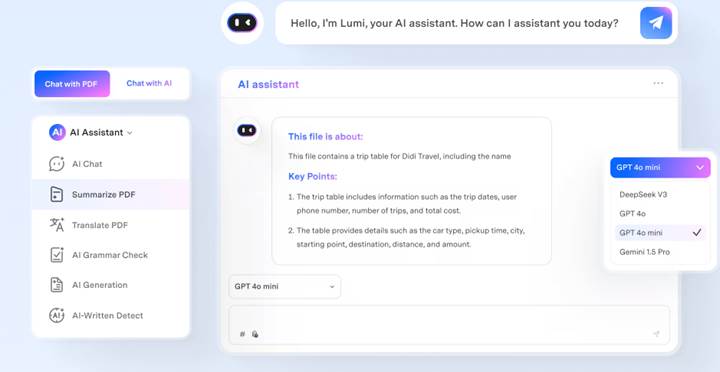
Step 4: Use AI Tools (Summarize, Rewrite, Extract)
Now use AI to improve the document itself.
Depending on your goal, you might:
- summarize a long PDF into notes or a shorter overview
- rewrite sections to make them clearer or more professional
- extract specific information from a dense file
- translate content for multilingual use
- explain difficult passages in simpler language
This is where AI adds the most workflow value. Instead of treating the PDF as a static file, you turn it into something easier to edit, reuse, and share.
Step 5: Export in Your Desired Format
After editing, export the document in the format that matches your next step. That may mean saving it as a polished PDF, converting it into Word or another editable format, or exporting extracted content for reporting or analysis.
A good final export step matters because PDF work rarely ends with one file. You may need to send the updated version to a client, hand it to a teammate, archive it, or repurpose the content elsewhere.
Pro Tips to Get Better Results
To get more value from AI PDF editing, keep these habits in mind:
- Run OCR early if you are working with scanned files
- Use AI before editing so you know which sections matter most
- Rewrite selectively instead of asking AI to change everything at once
- Check formatting after edits to make sure the document still looks professional
- Export with a purpose based on whether you need sharing, collaboration, or further editing
The best workflow is not “turn AI on and hope.” It is using AI at the right points to reduce manual effort without losing control.
Common Mistakes to Avoid
A few common mistakes can make AI PDF editing less effective:
- Skipping OCR on scanned documents and expecting clean edits anyway
- Using AI summaries as a substitute for review on sensitive or detailed files
- Editing too much at once instead of making section-by-section improvements
- Ignoring layout after rewriting text, especially in formatted PDFs
- Choosing a tool with AI features but weak PDF fundamentals
The goal is not just faster editing. It is faster editing that still produces a reliable final document. With the right workflow, AI PDF editing can turn a slow, frustrating task into a much more efficient process—and tools like Wondershare PDFelement show why that shift matters in 2026.