





Introduction
Imagine that a company has received some old iPhones or iPads as returned devices from ex-employees only to find out that they were locked to someone’s old Apple ID. The devices are fully working but without the right login details they cannot be used. For lots of businesses this is more than a simple inconvenience; it causes them to stop their work, delay their new employee training, and waste their valuable hardware.
iCloud Activation Lock, which is generally recognized as a consumer security feature, turns into a huge source of pain in corporate environments where devices are handed over to different people regularly. In this article, we will explain what Activation Lock really is, how it differs from Mobile Device Management (MDM), and the authorized means and ways to regain access.
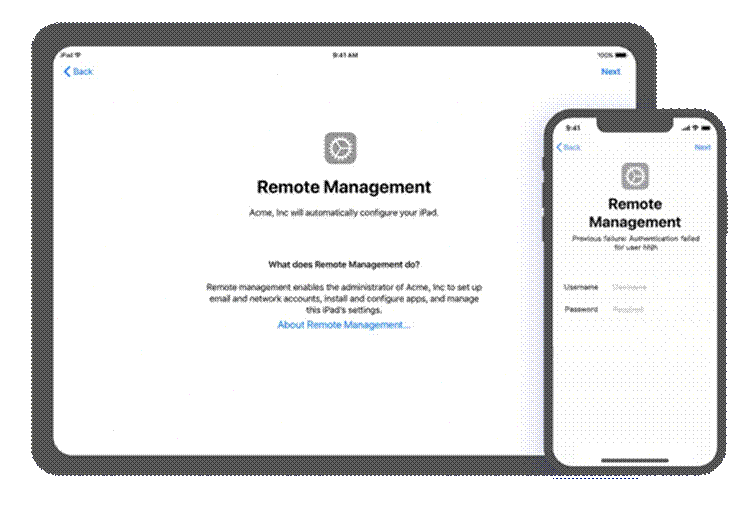
What Is iCloud Activation Lock — and Why It’s a Business Problem
iCloud Activation Lock is a security measure that gets activated automatically once you turn on Find My for your iPhone, iPad, or Mac. The lock once activated has the device permanently linked to the owner’s Apple ID. Therefore, even erasing or restoring the device to its factory settings wouldn’t make it feasible to register it without the original Apple ID and password.
Some of the scenarios where companies may find themselves include:
- A worker leaves, but their Apple ID stays connected to the device, causing it to be locked after a reset.
- Businesses that want to cut costs may end up with devices still linked to the previous owner.
- IT teams can find themselves stuck if even after wiping the device, the Activation Lock is still in place.
Activation Lock vs. MDM Lock — Understanding the Difference
Activation Lock
This lock is linked to a person’s Apple ID via iCloud. Once Find My is activated, the device automatically receives an Activation Lock. Even if the device is wiped, the original Apple ID and password will be required to turn it on again.
MDM (Mobile Device Management) Lock
MDM Lock is a situation where a corporation enrolls a device through Apple Business Manager (ABM) or a third-party MDM. This locking is a security measure that makes sure the device stays under the company’s control and prevents management profiles from being removed without authorization.
Who can remove them?
- MDM Lock: The company can also remove it straight from their MDM dashboard.
- Activation Lock: Needs Apple ID password, ownership evidence submitted to Apple, or a special bypass method.
Official Apple Methods for Businesses — And Their Limitations
1. Apple Business Manager (ABM)
This program lets businesses put their corporate devices under supervised management. If employees are given access to a correctly enrolled device, they will not be able to lock the device with their personal Apple IDs, and IT departments will have control.
Restrictions:
- As a rule, ABM only safeguards devices prior to the emergence of the issue.
- Devices not purchased through authorized channels or not added to ABM at the time of purchase generally cannot be secured afterward.
2. Apple Support (Proof-of-Purchase Submission)
Through submitting proof of purchase, companies can get in touch with Apple, and they will remove Activation Lock after verifying the ownership and if it is approved.
Restrictions:
- The whole procedure can be a long one, even up to several days at times.
- It necessitates having the original proof of purchase which is typically not available for older devices, resold devices, or devices that have been internally transferred.
- Apple’s response may be negative in case the documentation is missing or incomplete.
3. MDM-Based Activation Lock Bypass Key
In case a device was already supervised by MDM when the Activation Lock was activated, the MDM server has a record of a special bypass key that locks the device. This key can be utilized by IT administrators to unlock the device with no need for the Apple ID credentials.
Restrictions:
- Works only if the device was supervised prior to locking.
- No availability for personally owned or BYOD devices.
- Unusable for devices that either were never enrolled or supervised properly.
When devices don’t fit these situations, IT departments require a dependable third-party solution. That’s why tools such as Dr.Fone – Screen Unlock (iOS) are vital in getting locked out of a device and quick access back.
How Dr.Fone Helps Businesses Bypass iCloud Activation Lock
For IT teams operating with locked corporate devices, Dr.Fone – Screen Unlock (iOS) is a fast, dependable, and easy-to-use solution to regain access. Rather than waiting for Apple Support or looking for missing purchase invoices, Dr.Fone lets companies bypass iCloud Activation Lock without the original Apple ID, password, or jailbreak. Besides iCloud Activation Lock bypass, it is also capable of removing MDM restrictions, unlocking Apple IDs, bypassing Screen Time restrictions, and is compatible with the latest iOS/iPadOS 26.
This is perfect for businesses that operate large fleets, have batches of refurbished devices, or are in the process of employee offboarding, where the removal of Apple ID was not done.
Step-by-Step Overview: Using Dr.Fone to Remove Activation Lock
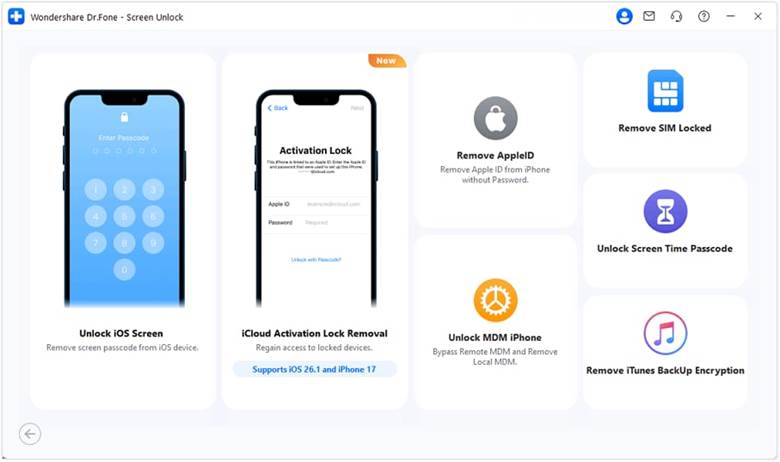
Step 1: Run Dr.Fone and select Screen Unlock
First, install Dr.Fone on your PC and launch it. Head over to Toolbox > Screen Unlock > iOS, then hit iCloud Activation Lock Removal to proceed.
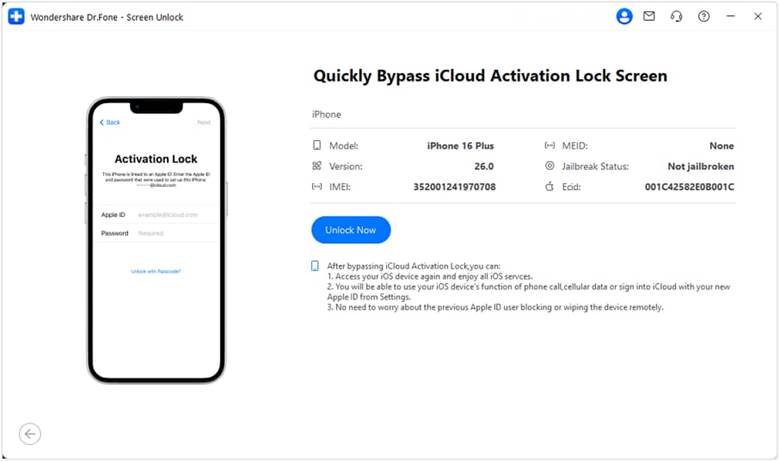
Step 2: Prepare your device and verify its info
To start with, plug in your iPhone or iPad to the PC. When Dr.Fone detects your device, verify the device info displayed is accurate before hitting Unlock Now.
Step 3: Grant authorization to Dr.Fone for device setup
Once you have read the warning messages, check I agree and figure it out. Dr.Fone will locate the proper driver and prepare your device for jailbreak.
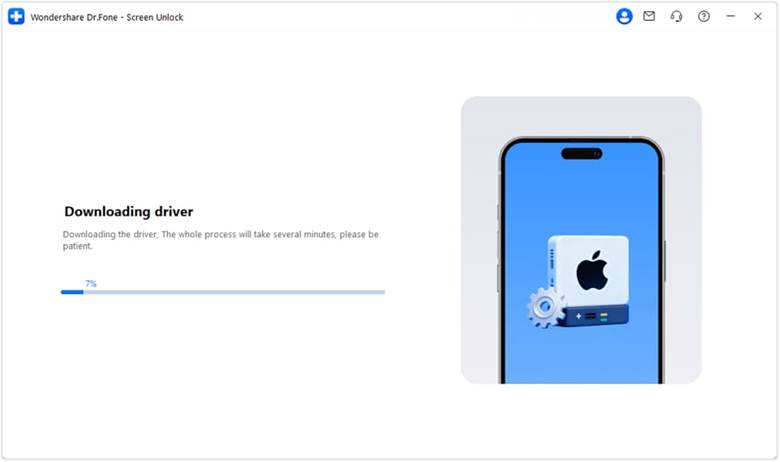
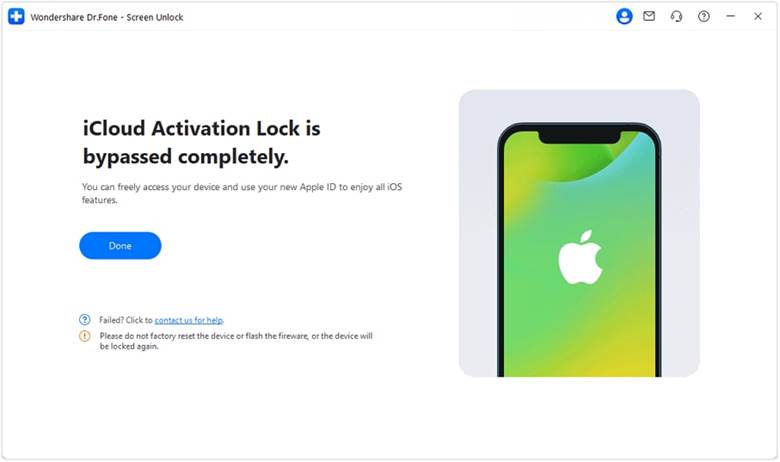
Step 4: Get out of lock and finalize the setup
The app will handle the Activation Lock bypass silently. Make sure you don’t unplug the device before it completes the operation.
Best Practices to Prevent Activation Lock Issues in Your Fleet
- Assign a unique Apple Business Manager ID to every company-issued iPhone/iPad at the very first day.
- Use a formal offboarding checklist where employees are required to sign out of their Apple ID prior to returning of devices.
- Have the devices managed and supervised by an MDM platform to have access to the Activation Lock bypass keys.
- Keep original purchase invoices for all devices to be able to present to Apple for verification when necessary.
- Check the Activation Lock status by using IMEI or serial number before purchasing refurbished or second-hand devices.
Quick tip: Always look in Settings > [Employee Name] to make sure that no personal Apple ID is used in the device before wiping it.
Conclusion
Managing company iPhones and iPads require one to keep track of the iCloud Activation Lock as well as MDM locks. Apple’s official methods are usually slow or restricted, but Dr.Fone, Screen Unlock (iOS) enables companies to instantly eliminate Activation Lock and MDM restrictions without data loss. IT departments can really make their life easier, safeguard data, and have their devices on standby for work through simple measures e.g., signing up devices to Apple Business Manager, utilizing the MDM system, maintaining purchase receipts.