




In today’s fast-paced world, project management can make or break a team’s success. Whether you’re leading a startup, a marketing campaign, or a software rollout, you’ll probably deal with shifting deadlines, scattered information, and endless coordination.
Tools like Trello and Notion help individuals and teams manage these demands by replacing scattered spreadsheets and long email chains with clear, structured workflows.
This guide will walk you through how to use both Trello and Notion effectively, while also addressing the common concerns most first-time users have.
Trello
Trello is known for its simplicity. Here’s how it works:
- Boards: Represent your entire project (e.g., Website Redesign).
- Lists: Represent stages in your workflow (e.g., To Do, In Progress, Done).
- Cards: Represent individual tasks (e.g., fix a login bug, write a blog post, design a landing page).
Many people wonder if Trello only works for teams, but it’s equally useful for personal productivity. You can use it to track your study goals, plan a vacation, or even organize your daily tasks.
Another big plus is automation. Trello comes with a feature called Butler, which lets you set rules so tasks move on their own.
For example, when you mark a card complete, Butler can automatically send it to the “Done” list. It can also assign tasks based on keywords or create recurring reminders for things like weekly meetings.
If you’re not sure how to structure your board, Trello provides templates.
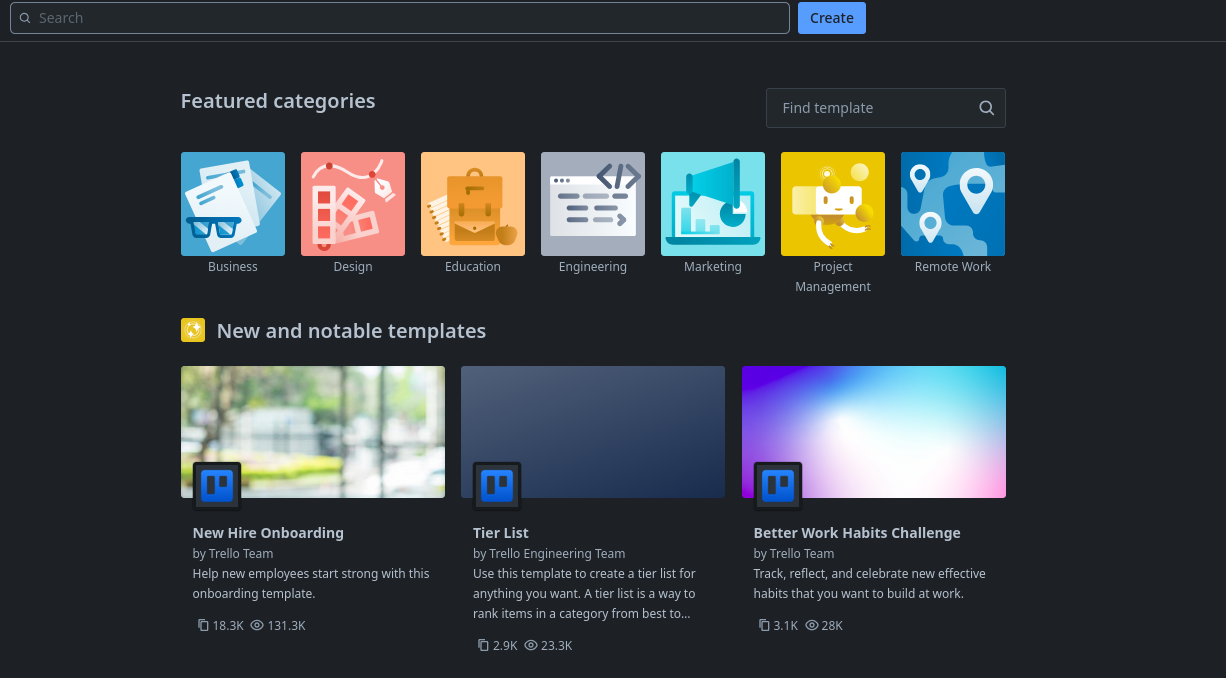
Tech teams often use the Agile Sprint Board to manage their sprints, but there are also templates for bug tracking, marketing calendars, and even personal planners.
The free plan is enough to get started, but paid tiers unlock extras like unlimited automation, advanced integrations, and larger file attachments.
Notion: Flexible and All-in-One
Trello specializes in task management, while Notion positions itself as a complete workspace. It offers far more flexibility, though it takes a bit more time to learn and set up effectively.
The real strength of Notion, however, is its databases.
A single task list can be viewed in multiple formats, i.e., table, calendar, or timeline, without losing any data. This flexibility makes it ideal for sprint planning or managing complex projects where team members prefer different views.
Notion also excels at documentation. Meeting notes, guidelines, and project details can all be stored in one place.
Teams often build a wiki inside Notion to store guidelines, coding standards, and onboarding resources. You can even map out a roadmap in timeline view so everyone knows what’s coming next.
Notion connects with your existing tools. You can embed Google Drive files, link GitHub repos to track pull requests, or connect with Slack so updates ping your team instantly.
Is Notion free? Yes it is. But like Trello, the free plan covers personal use and small teams. Paid plans add advanced permissions, version history, and more storage.
Offline use is limited as well. You’ll need to have your pages cached beforehand, but once you reconnect, everything syncs automatically.
Best Practices for Both Tools
No matter which tool you choose, a few habits will make them more effective:
- Keep it simple: Don’t create too many boards or databases. Complexity kills adoption.
- Review regularly: A weekly check-in ensures tasks don’t go stale.
- Use labels and tags: Color-coding tasks by priority or team member saves time.
- Onboard your team: A short walkthrough helps everyone get on the same page quickly.
Trello and Notion are both excellent tools for managing projects, but they serve slightly different purposes.
Trello is straightforward and perfect for task tracking, while Notion is flexible and powerful for teams that also need documentation and planning features.