




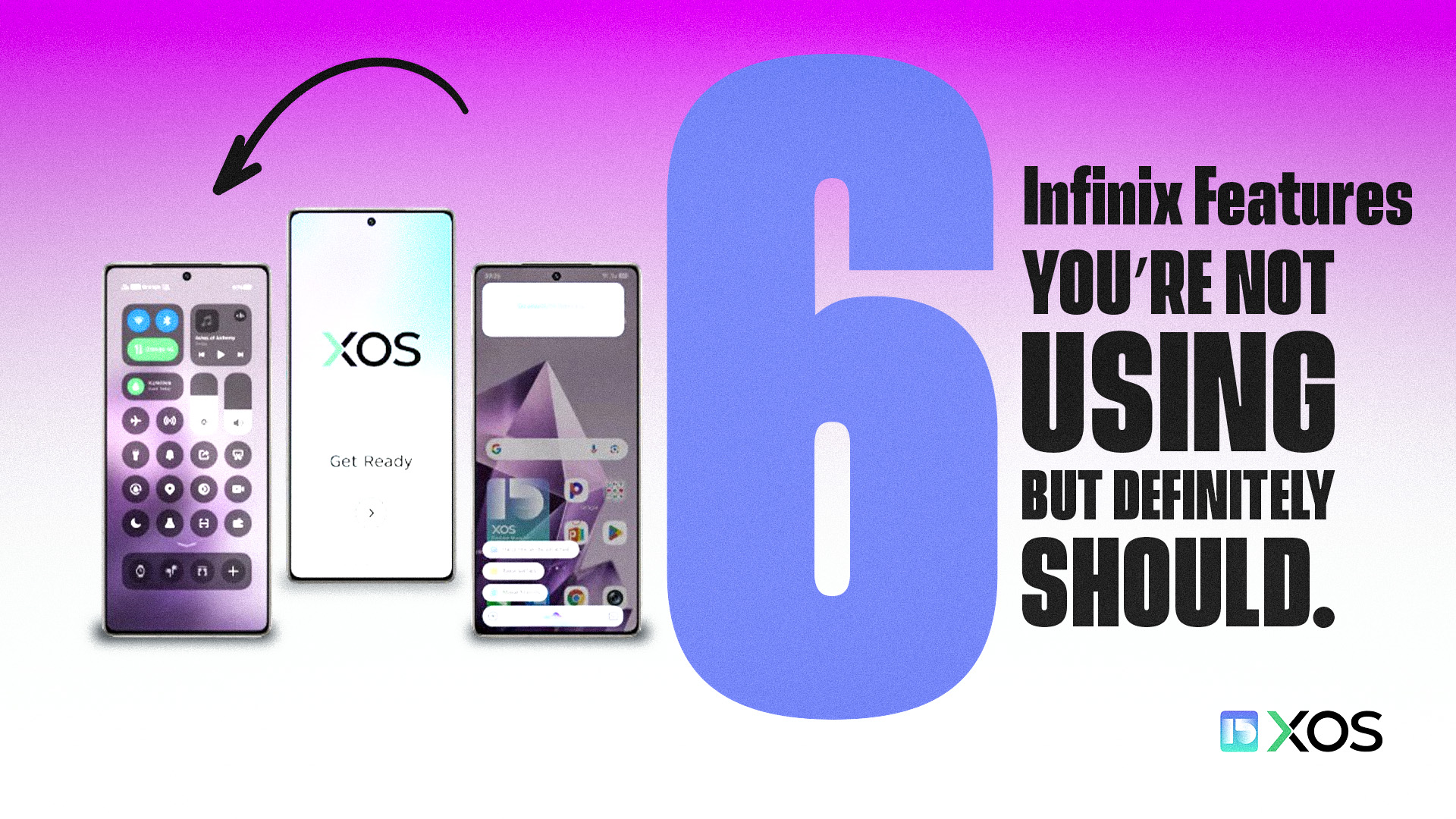
Most people use their Android phones the same way every day – scrolling through apps, switching between screens, and barely scratching the surface of what the device can actually do. Infinix smartphones run on Android, which means they’re loaded with features that don’t get much attention but can genuinely change how you use your phone.
Here are 6 features on your Infinix that you probably didn’t know about.
Split-Screen Mode for Real Multitasking
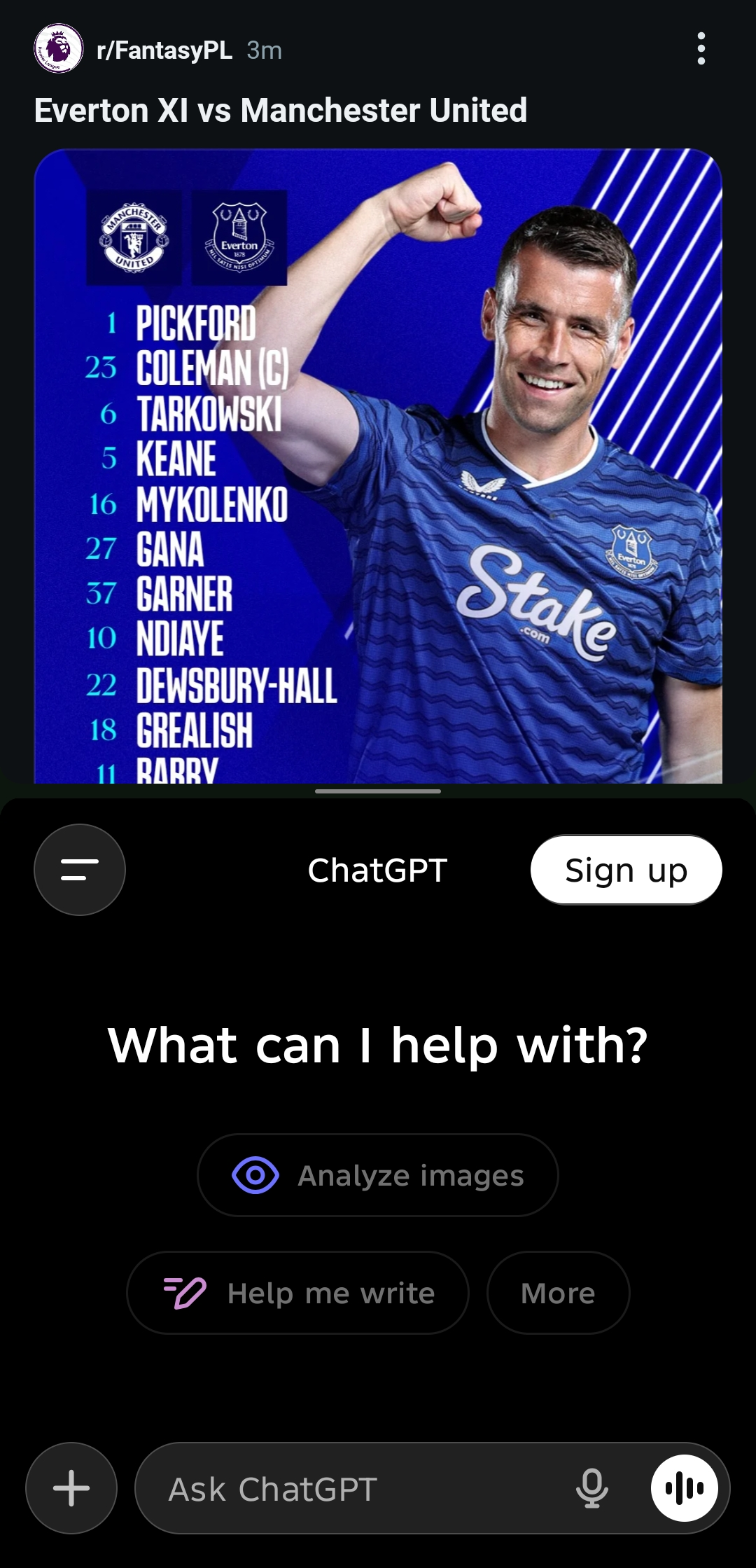
Constantly jumping between apps gets old fast. Android’s split-screen feature lets you run two apps at once on the same screen. Open your first app, hit the Recent Apps button, then tap and hold the app icon to select Split Screen. Pick your second app, and you’re set.
Want to respond to messages while watching a video? Done. Need to take notes while reading something online? Easy. Just drag the divider between apps to adjust how much screen space each one gets.
Widgets That Actually Save You Time
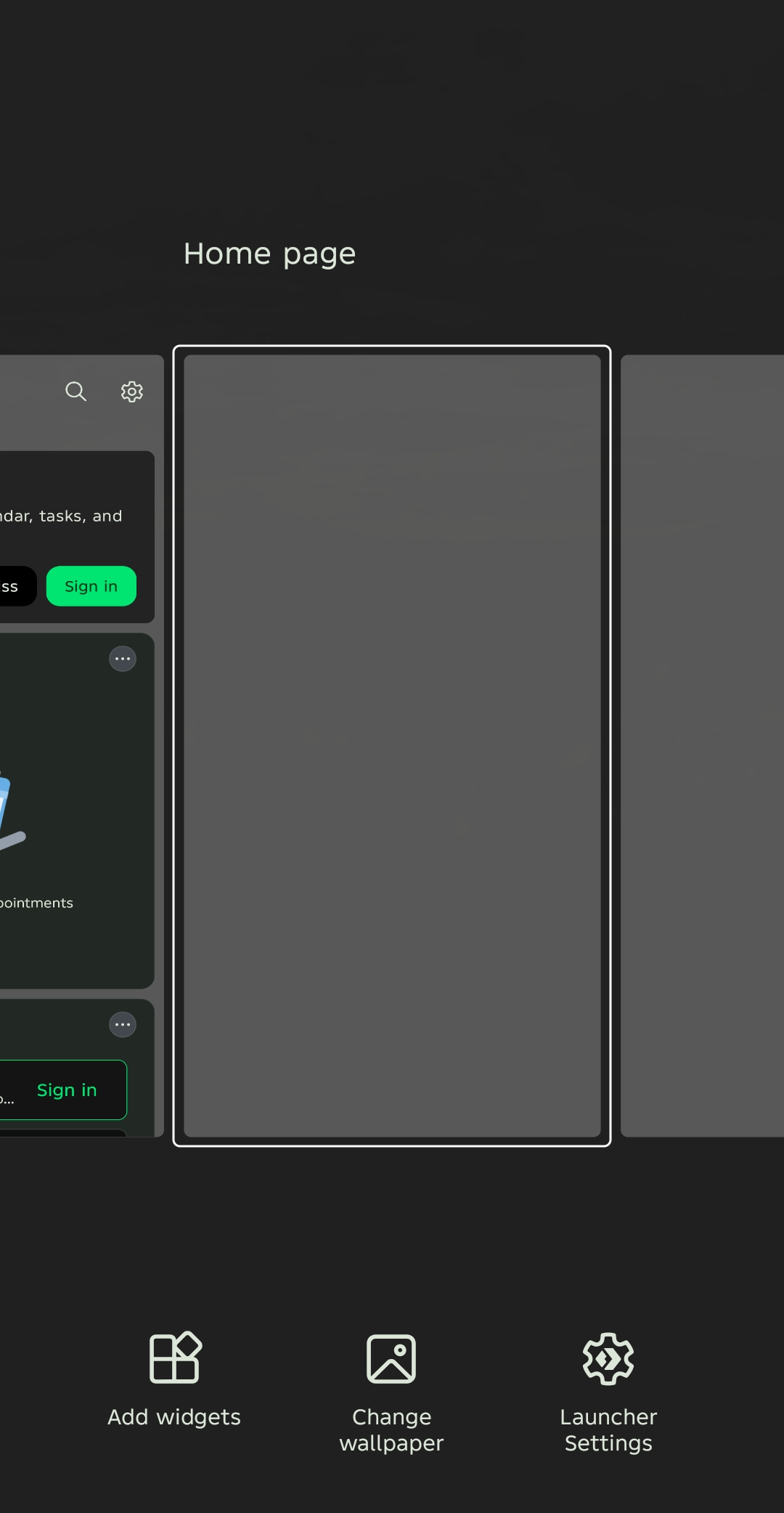
Widgets aren’t just decorative. They give you instant access to information without opening apps. Long-press any empty spot on your home screen, tap Widgets, and drag whatever you need onto your screen.
Weather forecasts, calendar events, music controls – all right there. You can resize them and move them around however you want.
Screen Recording Without Installing New Apps
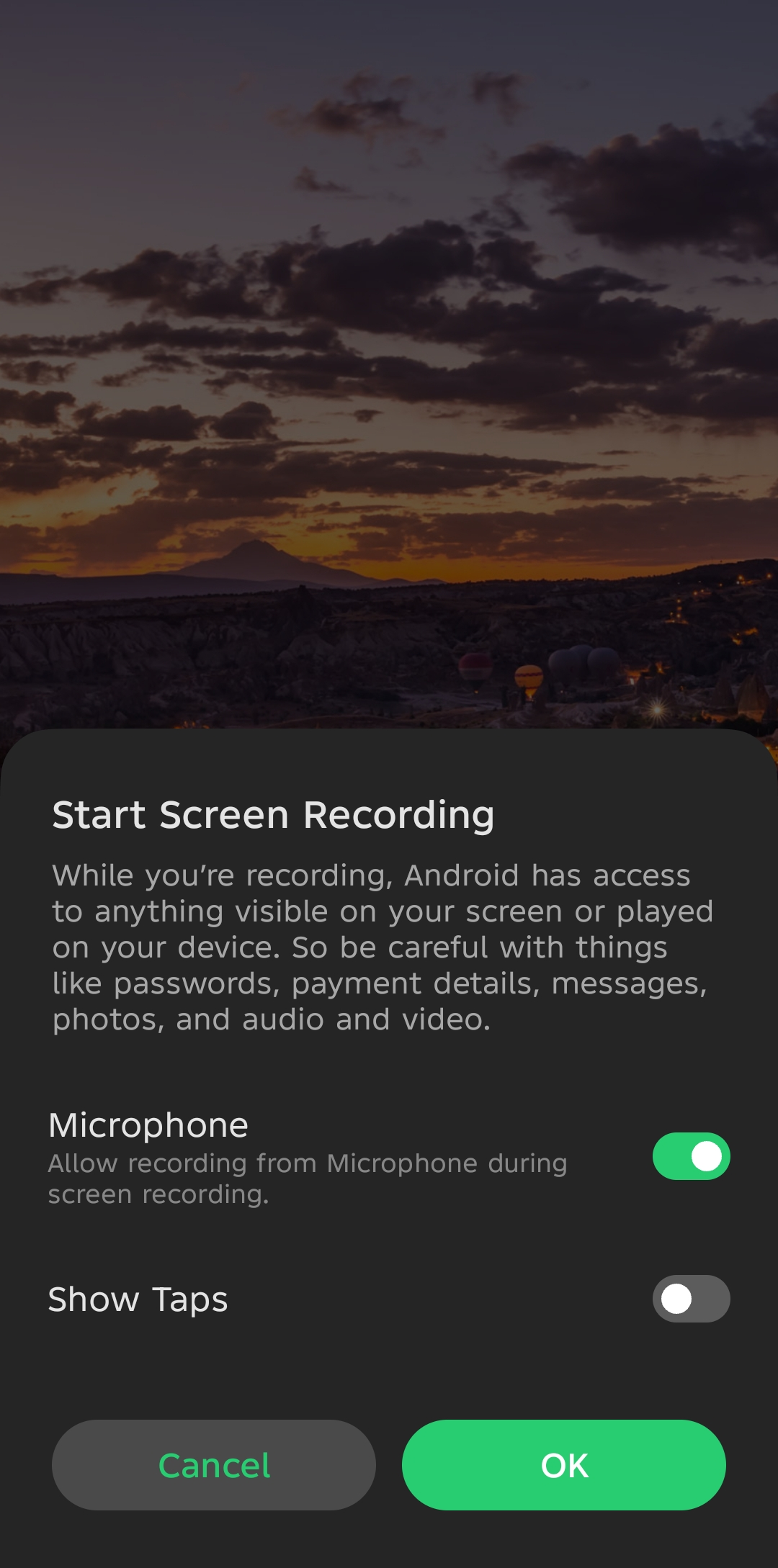
Recording your screen used to require downloading sketchy third-party apps. Not anymore. Swipe down to your Quick Settings panel and tap Screen Recorder. If you don’t see it, edit the Quick Settings menu to add it.
You can adjust resolution and sound settings before you start. Turn on microphone audio if you’re making a tutorial or recording gameplay with commentary.
Smart Panels and Gesture Controls
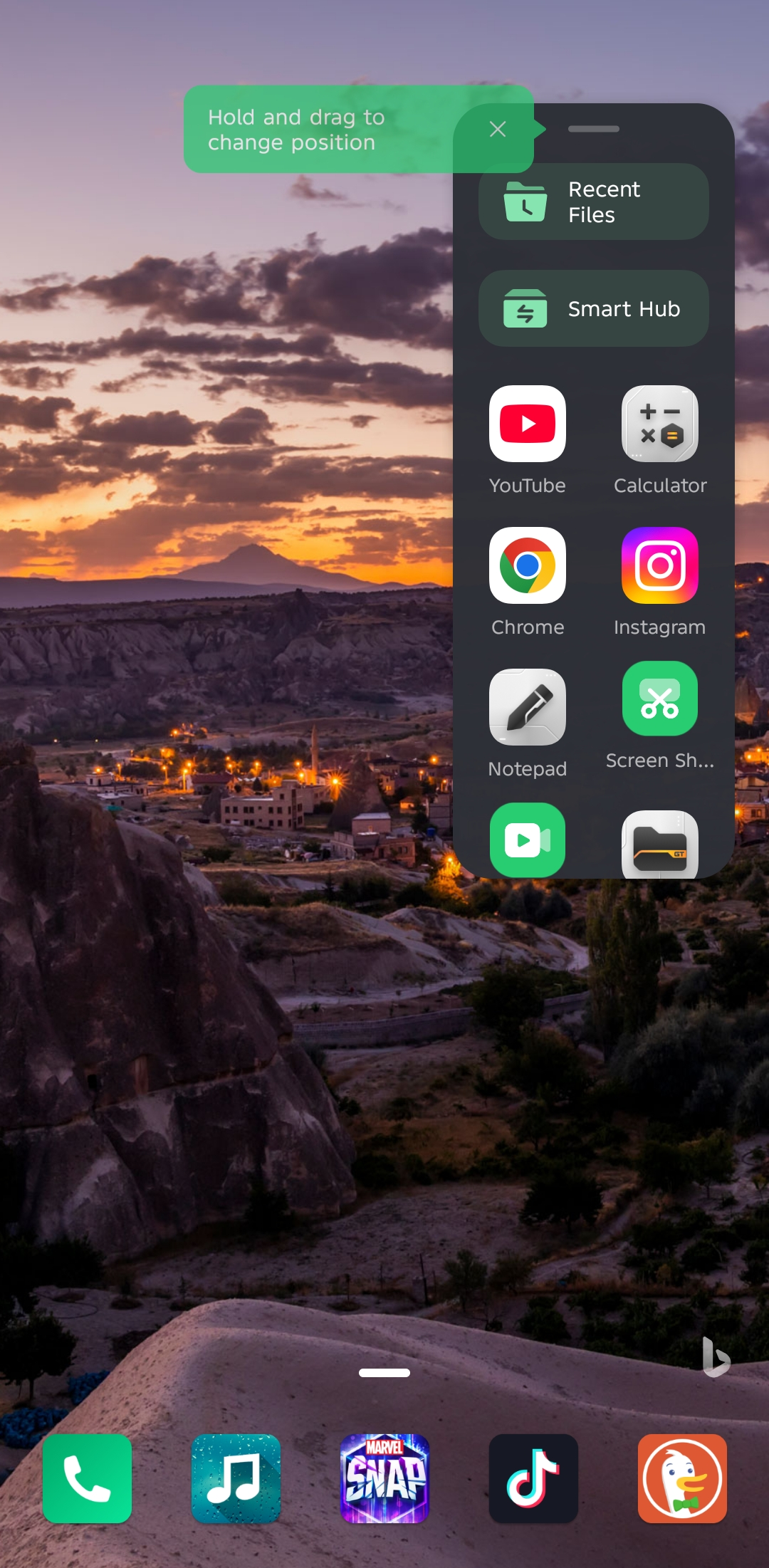
Smart Panels create shortcuts you can access by swiping from the screen’s edge. Go to Settings, then Smart Assistance, then Smart Panel to turn it on. You’ll get quick access to apps, tools, and settings without hunting through menus.
Gesture navigation speeds things up too. Swipe inward from either edge to go back. Swipe up and hold from the bottom to see recent apps. Swipe left or right along the bottom edge to quickly switch between apps. You can customize all of this in Settings under System and Gestures.
Privacy Controls That Protect You
Android’s privacy features are buried in settings, but they’re worth finding. Head to Settings, then Privacy, then Permission Manager to see exactly which apps have access to your camera, microphone, and location. You might be surprised by what you find.
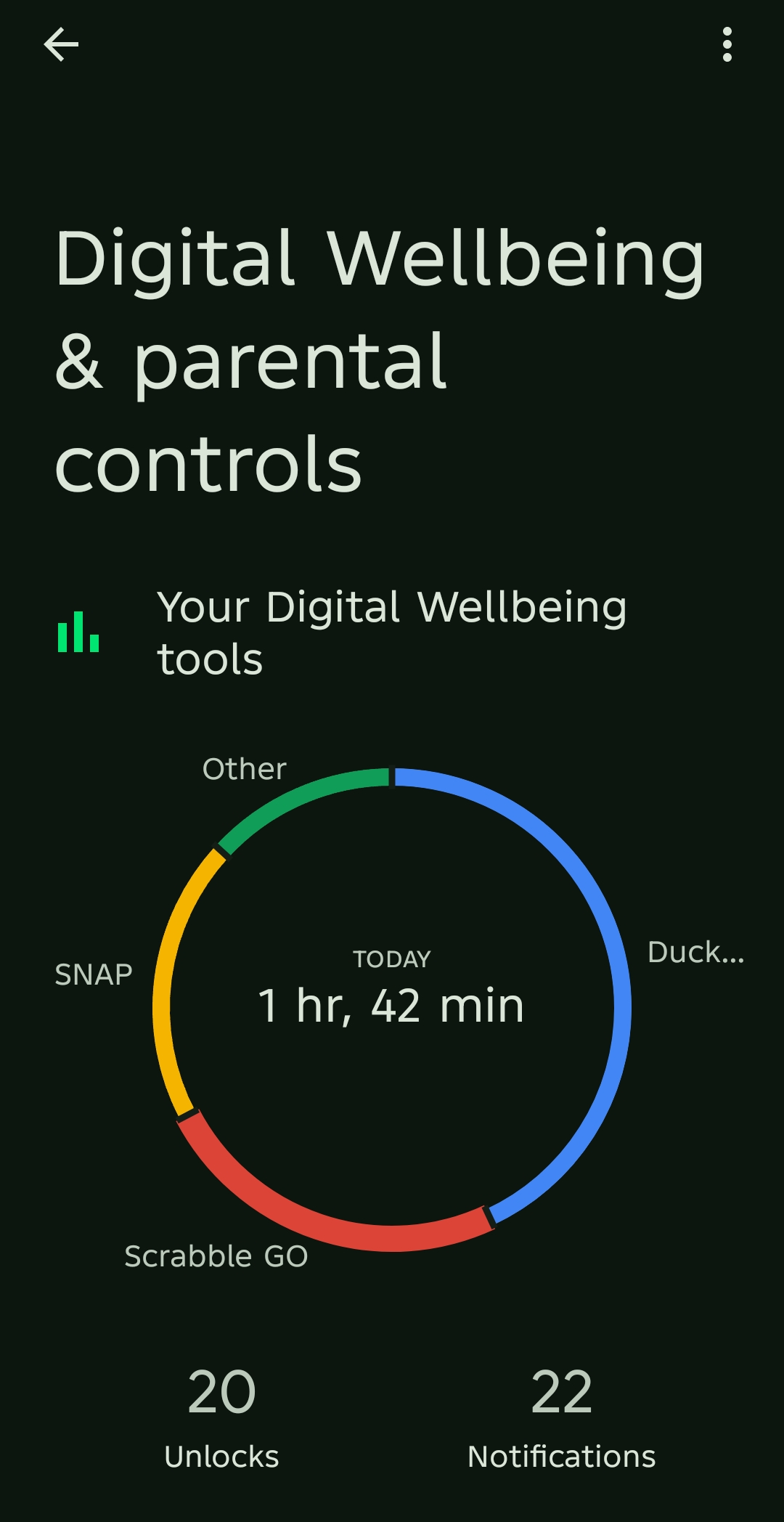
Digital Wellbeing, also in Settings, lets you set time limits on apps and schedule wind-down modes to help manage screen time. Always lock your Infinix with a PIN, pattern, or fingerprint. Face Unlock also works well for quick access while keeping things secure.
XBoost To Make Gaming Better
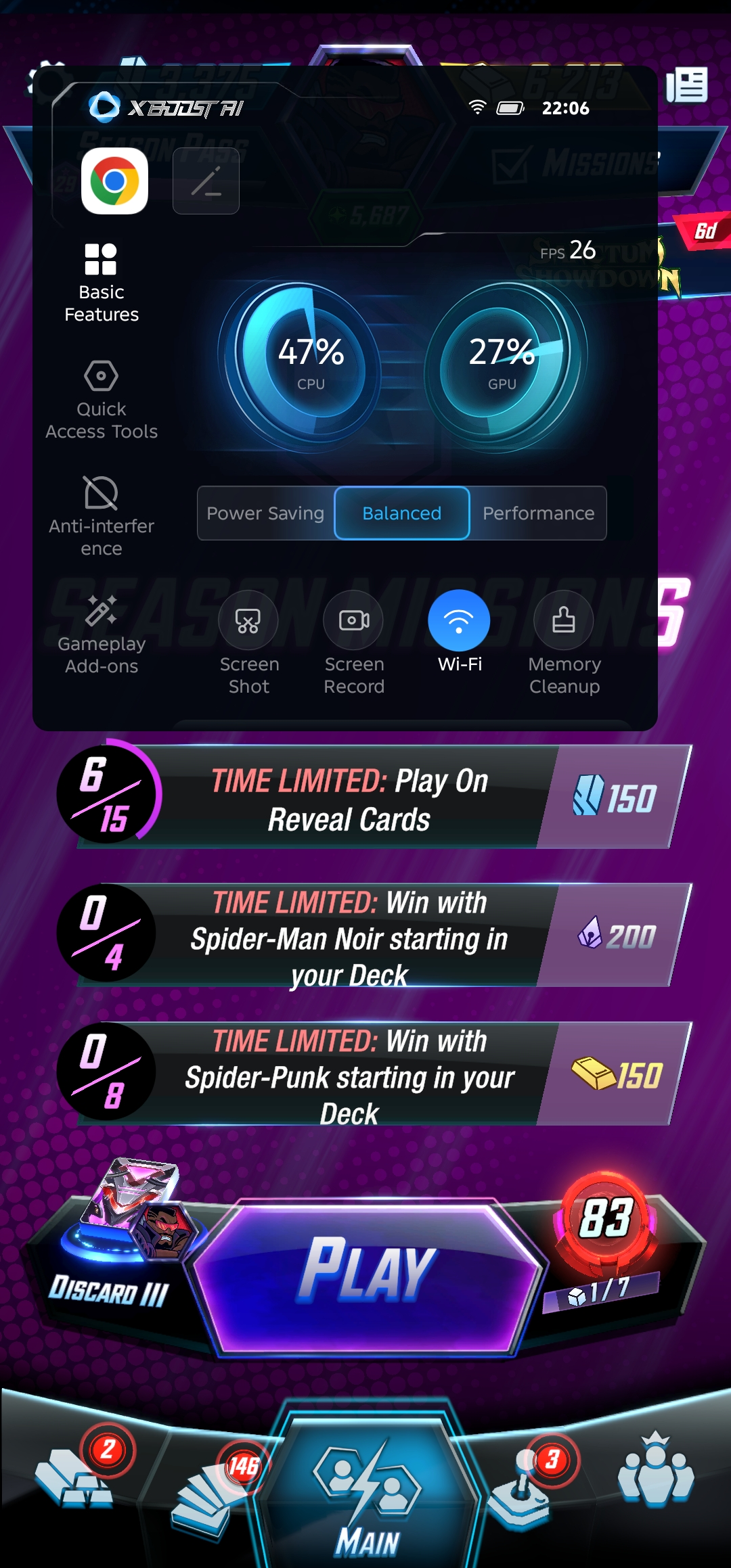
If you play mobile games, XBoost optimizes your phone’s performance while you’re playing. Open the XArena app, add your games to the library, and enable Gaming Mode to block calls and notifications.
The performance booster helps games run smoother. Turn on Do Not Disturb mode when you really don’t want interruptions.
These features don’t require technical knowledge or special skills. They’re just sitting there in your Infinix, waiting to be used. Most of them take seconds to set up and can make daily tasks faster, more private, or more convenient. The question isn’t whether your phone can do these things, but whether you’ll actually use them.