


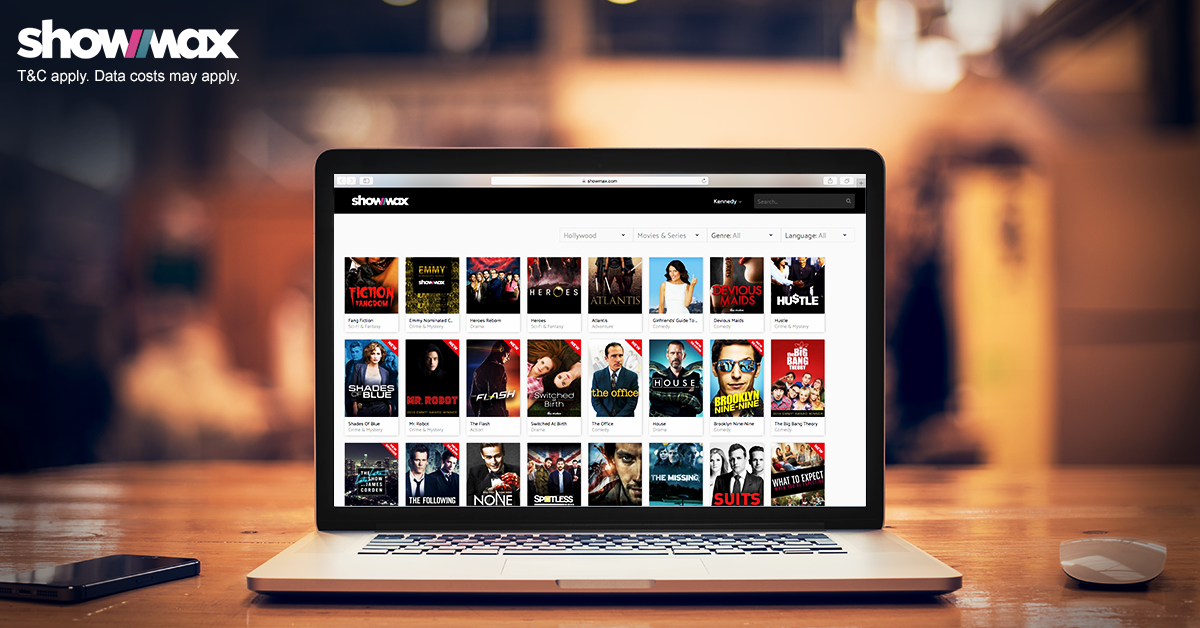
 Video on demand services are great but can be very expensive for those who rely on mobile data. ShowMax’s Bandwidth Capping feature allows you to control how you use your data when streaming your favourite show or movie online. ShowMax also has the option to download any show or movie on Wi-Fi and watch offline on your smartphone or tablet without the need for a data connection.
How to cap data when streaming from your smartphone or tablet
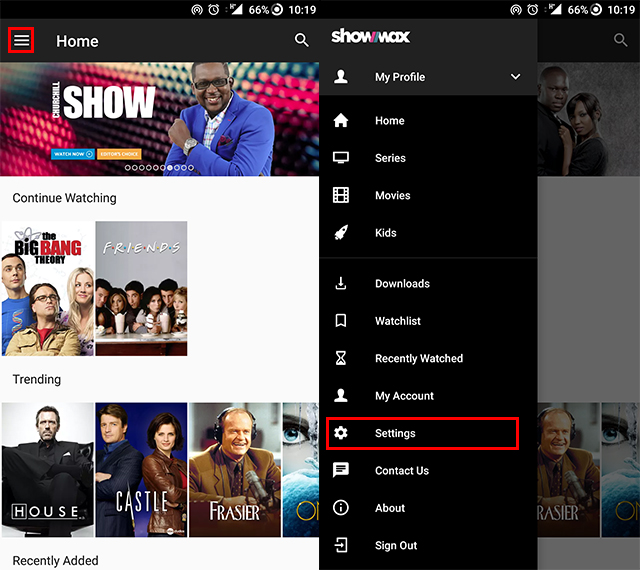
- Open the ShowMax app on your smartphone.
- Ensure you are logged on to your ShowMax account then click Menu.

- Click Settings (For iOS, click App Preference after Settings).
- Select Bandwidth Capping.
- Here, you’ll find three options:
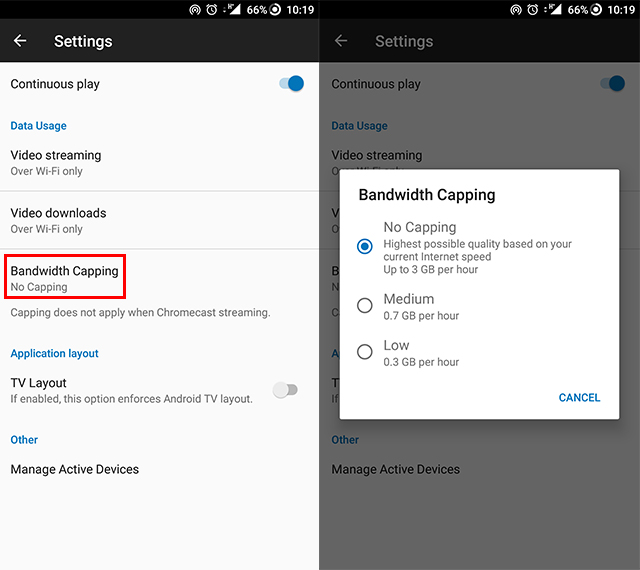
- No Capping – this gives you the highest possible quality at 1.4 GB per hour
- Medium – 0.7 GB per hour
- Low – 0.3 GB per hour
Finally, select the bandwidth capping setting best suited to your needs and budget. ShowMax ensures that you will still get good picture quality on the medium or low settings, especially if you’re using a smartphone or tablet.
How to cap data when streaming from a computer
- Go to https://www.showmax.com/eng/ and Log on to your account.
- Select whatever you want to watch from the catalogue and click PLAY NOW.
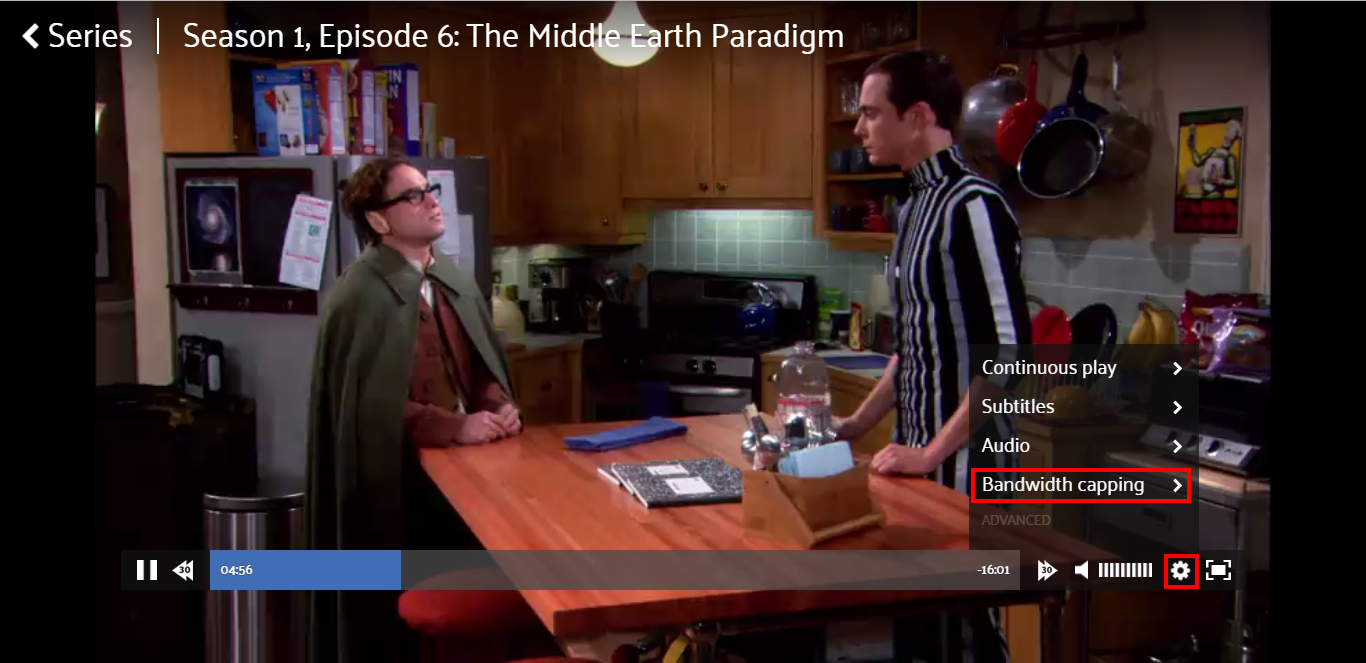
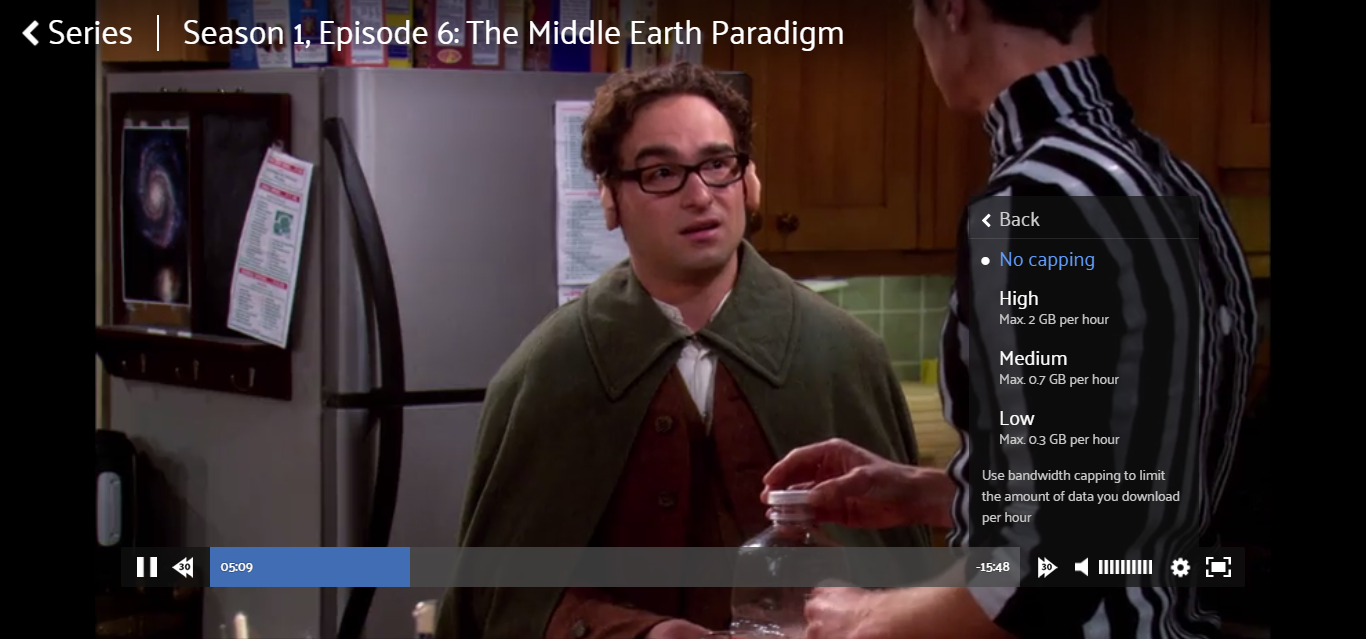
- As your show/movie begins to play, click Settings on the lower right-hand corner of the ShowMax play bar.

- Your bandwidth capping options should pop up. Select the one that is most suitable to you.

Bandwidth Calculator
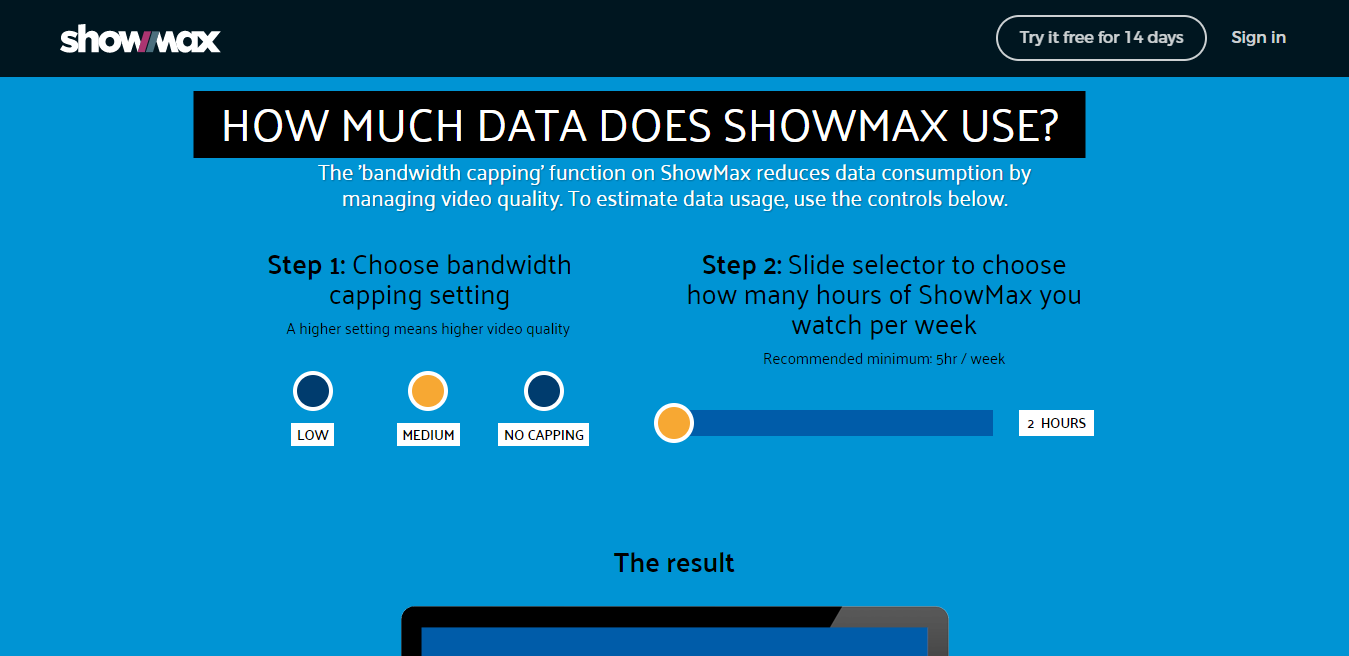
Aside from bandwidth capping, ShowMax has a bandwidth calculator that can help you determine how much data you use while streaming on ShowMax. To access the bandwidth calculator:
- Go to https://www.showmax.com/eng/bandwidth-calculator
- Select your bandwidth capping setting, either low, medium or no capping.

- Select the number of hours you spend watching ShowMax per week with the slider.
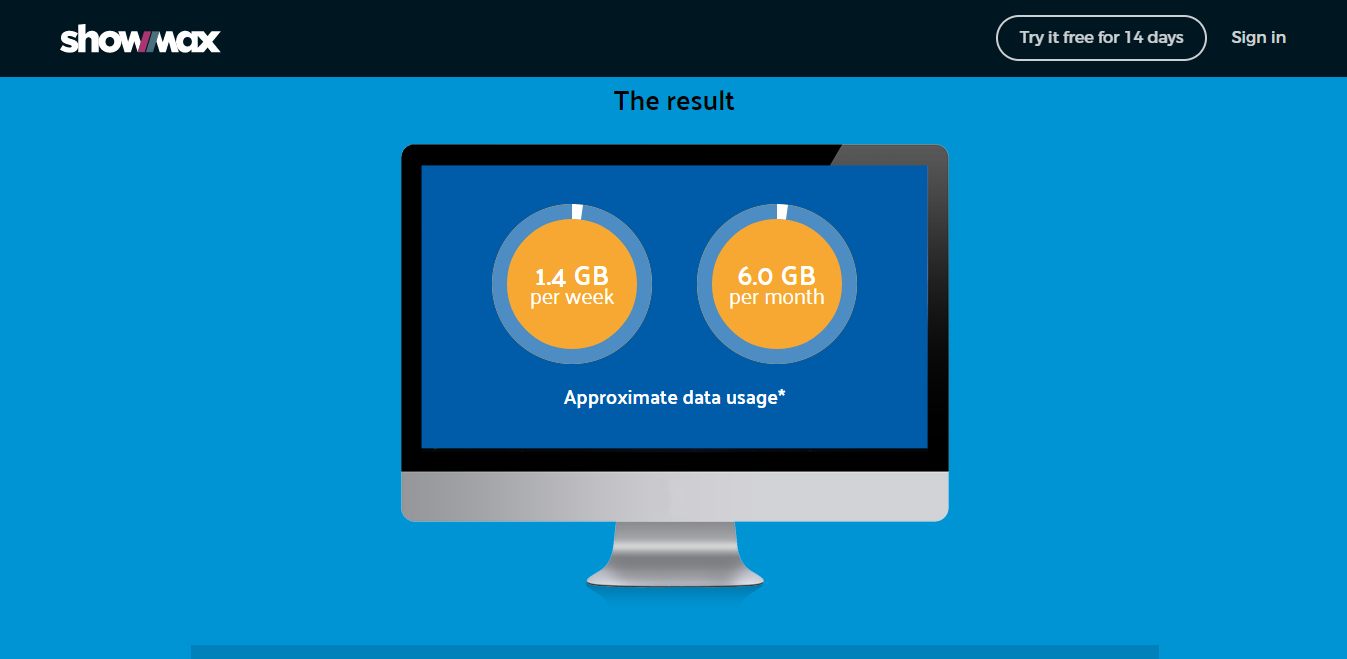
- Scroll down to see the approximate bandwidth you use per week and per month.
 You can now enjoy ShowMax without the worry of using up all your data. Browse the full catalogue to see what you can watch on Showmax here » https://www.showmax.com/eng/
browse
 You can now enjoy ShowMax without the worry of using up all your data. Browse the full catalogue to see what you can watch on Showmax here »