






Google is changing how calls look on Android. The company has introduced Calling Cards in the Google Phone app, replacing the traditional small caller ID photo with full-screen, customizable visuals.
This update builds on Google’s wider “Material You” redesign, hoping to bring more personality and flair to incoming calls. While many users welcome the added customization, others have been left scratching their heads at the sudden changes.
Here’s what you need to know about the new changes.
What Are Google’s Calling Cards?
Calling Cards are Google’s take on a personalized, full-screen caller ID experience. Instead of the small circular profile photos we’ve been used to for years, Calling Cards let you:
- Assign a full-screen image to any contact.
- Customize fonts and colors for the contact’s name.
- Apply a more vibrant Material 3 design language to your call screen.
Unlike Apple’s Contact Posters, which allow you to define how others see you when you call them, Google flips the idea: you decide how your contacts appear when they call you.
Why Your Call Settings Suddenly Changed
Many Android users are reporting differences in their call experience without making any manual changes. Here’s why:
- Automatic Updates: The Google Phone app updates silently through the Play Store, and Calling Cards are enabled by default for supported devices.
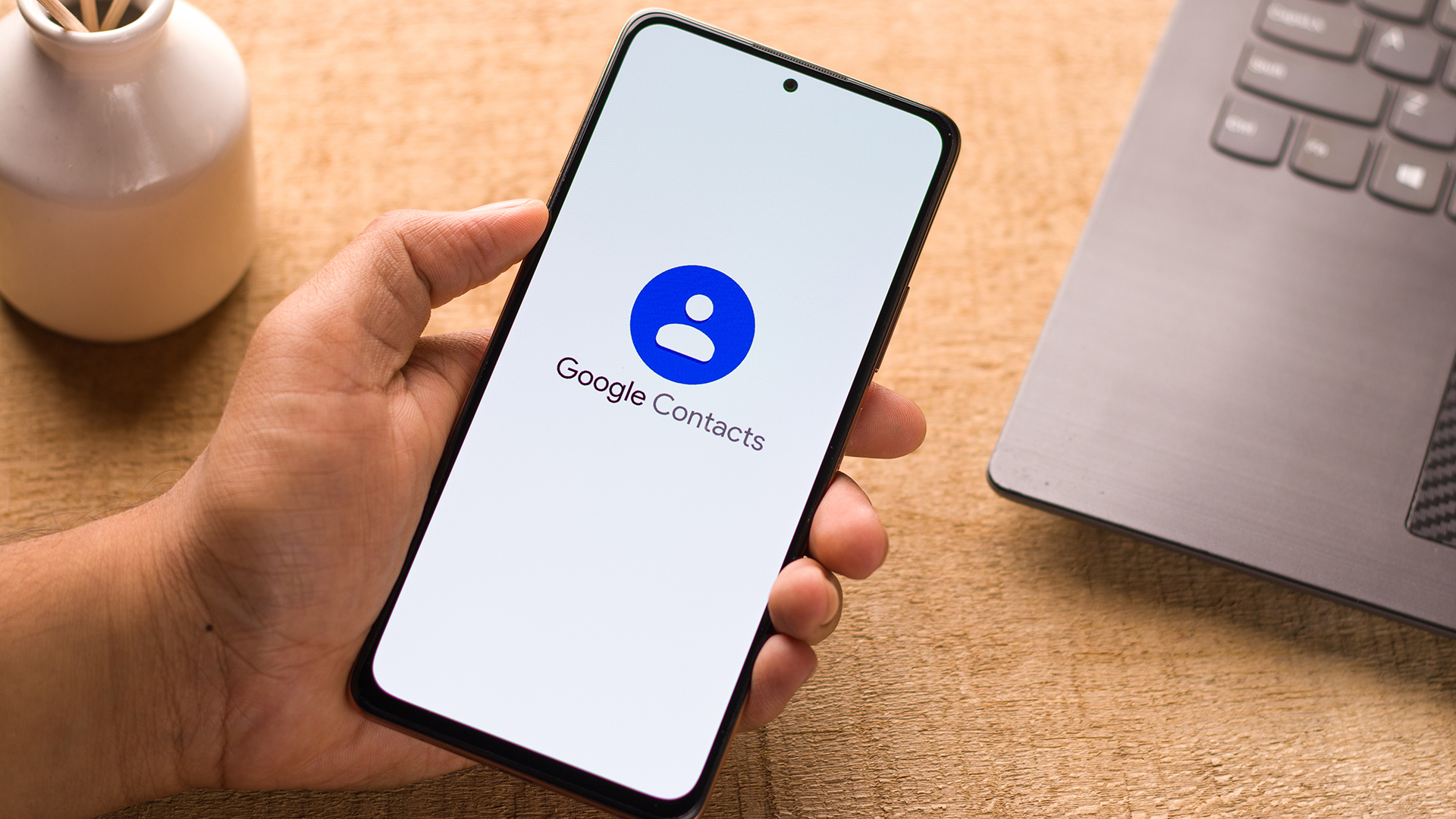
- Integration with Google Contacts: Because Calling Cards sync with the Contacts app, any customization there directly affects how calls appear in the Dialer.
- UI Redesign with Material You: Beyond just Calling Cards, the update restructures buttons, menus, and layouts, making the app look and behave differently.
- Carrier Settings Shifts: Some features, like Wi-Fi Calling or Caller ID & Spam protection, may toggle after the update, leaving users confused about why things feel “off.”
How to Create or Manage a Calling Card
If you’re curious or want to take control of the changes, here’s how to use Calling Cards:
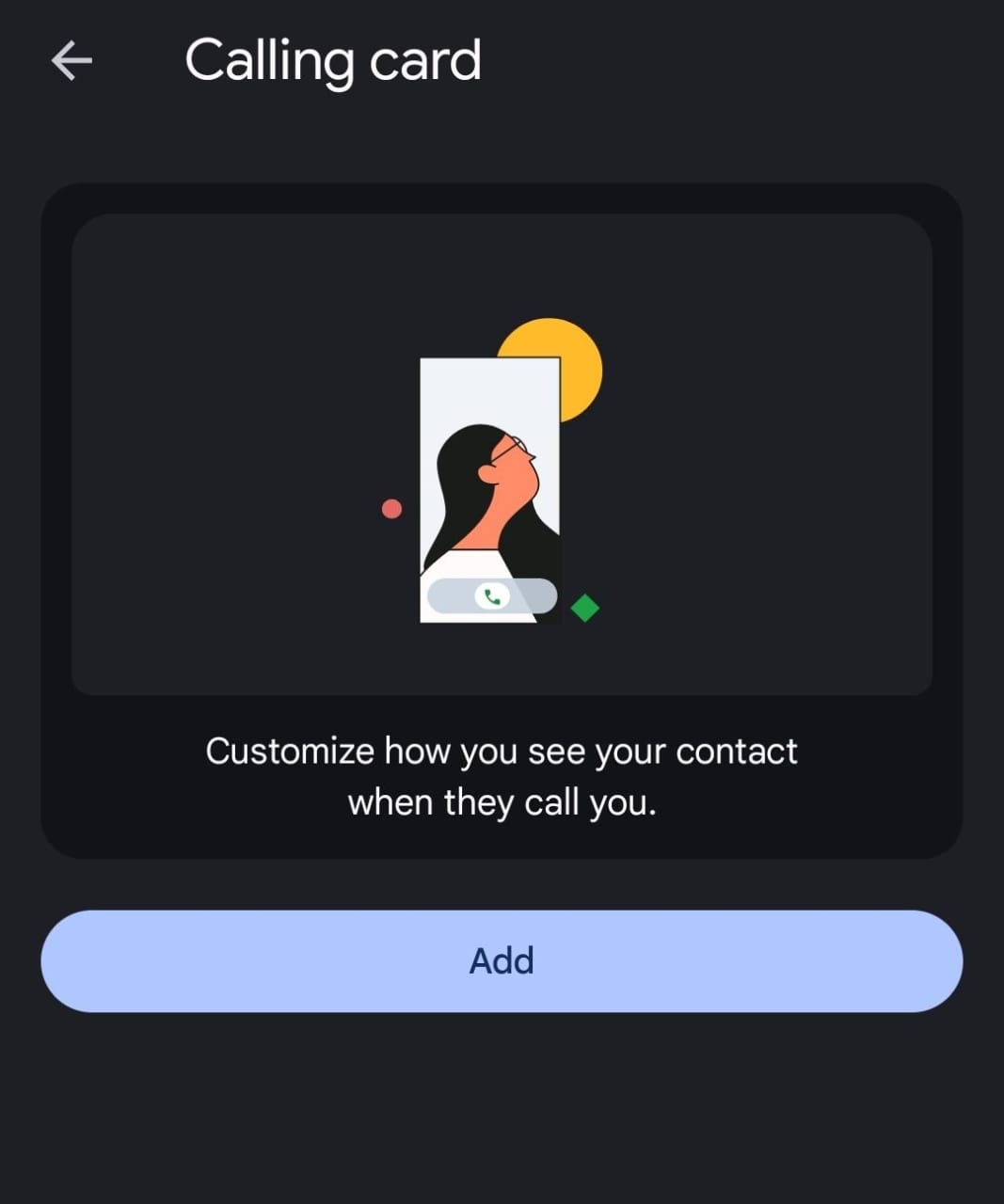
- Update Your Apps
- Ensure you have the latest versions of Google Phone and Google Contacts from the Play Store.
- Add a Calling Card
- Open the Contacts app, select a contact, and tap “Add a Calling Card.”
- Choose a photo from your gallery or Google Photos.
- Adjust the crop and layout.
- Pick a font style and color for the contact’s name.
- Save your changes.
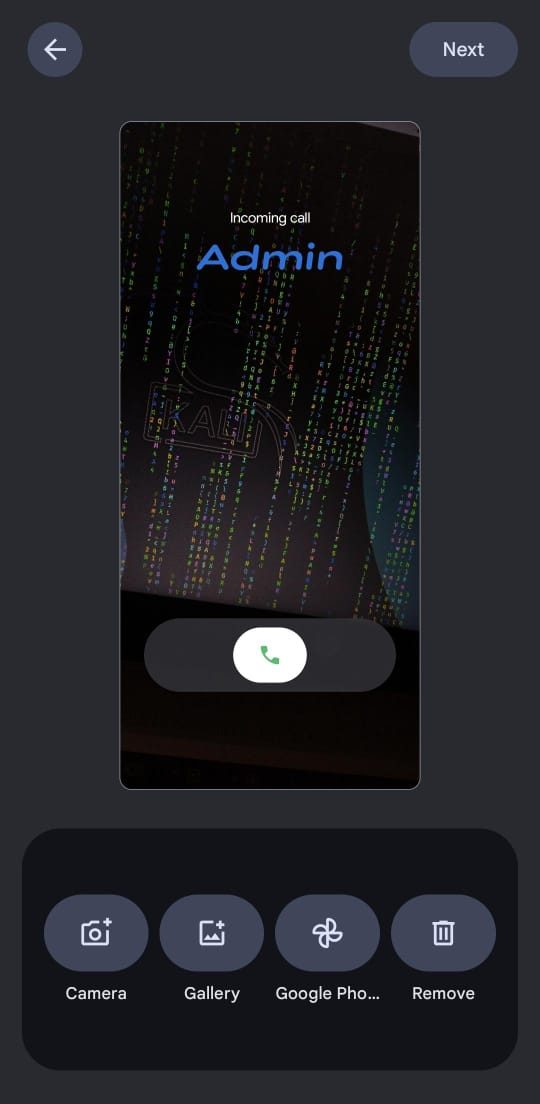
- View in Phone App
- The next time that contact calls, you’ll see the full-screen card instead of the old thumbnail photo.
- Edit or Remove
- Head to the Phone app > Settings > Calling Card to manage, edit, or delete the designs.
Calling Cards are Google’s way of making Android more personal, expressive, and visually engaging. As you may have observed, you now get:
- Faster Caller Recognition: A full-screen image is easier to spot than a tiny icon.
- Personalization: You can give family, friends, or colleagues their own unique style.
- Consistency Across Apps: Since it syncs with Google Contacts, your calling experience stays the same across devices.
However, the rollout is gradual, meaning not all devices or regions will see the feature immediately.