




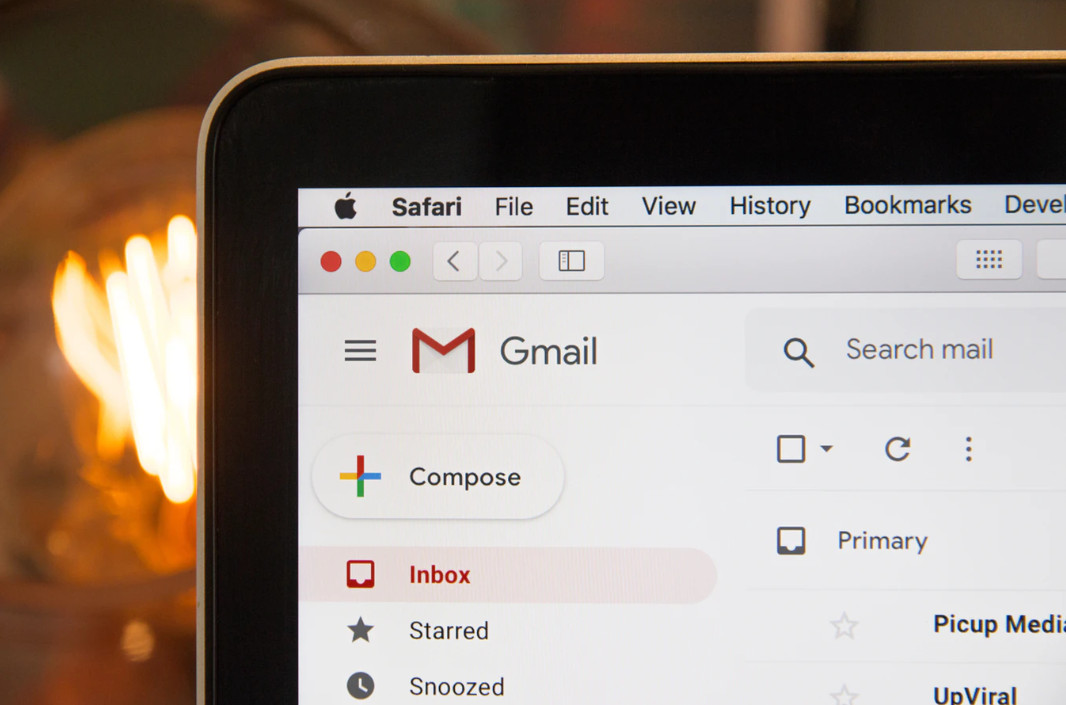
If you have a Gmail account, Google’s AI is probably reading it right now. Not in a vague, theoretical way, but literally scanning your emails, attachments, bank statements, tax files, and medical letters through Gemini, its AI system.
According to a class-action lawsuit filed against Google, this didn’t happen by choice. In late 2025, Google quietly switched Gemini’s “Smart Features” on for every Gmail, Chat, and Meet user in October 2025 without asking first.
Before that, the feature was opt-in. Now it’s opt-out, and the switch to turn it off is buried in two separate settings menus that most people will never find on their own.

Google disputes the claims, and the case has had a rocky path through the courts. Reuters reported that a federal judge threw out the lawsuit in July 2026, saying the people suing hadn’t shown they were actually harmed.
The judge did let them try again with a stronger case, so the fight isn’t over. Legally, the matter is still unsettled, but practically, nothing has changed.
When Smart Features are on, Gemini reads your inbox to generate summaries, auto-replies, and suggestions. That means it’s processing everything that passes through your account, including sensitive financial and medical documents.
Some of that data can sit in your Gemini activity history for months, and in certain cases, human reviewers see anonymized snippets of it to help improve the AI.

Turning off one setting doesn’t give the full reset. You need to hit all five switches below to fully lock things down. Smart Features remain on by default for most accounts, and the only way to stop the scanning is to turn it off yourself.
Here’s how, in five moves.
Move 1: Turn Off the Main Switch on Desktop
This is the master switch for Gmail, Chat, and Meet.
- Open Gmail on a computer and click the gear icon (⚙️) in the top right.

- Click See all settings.
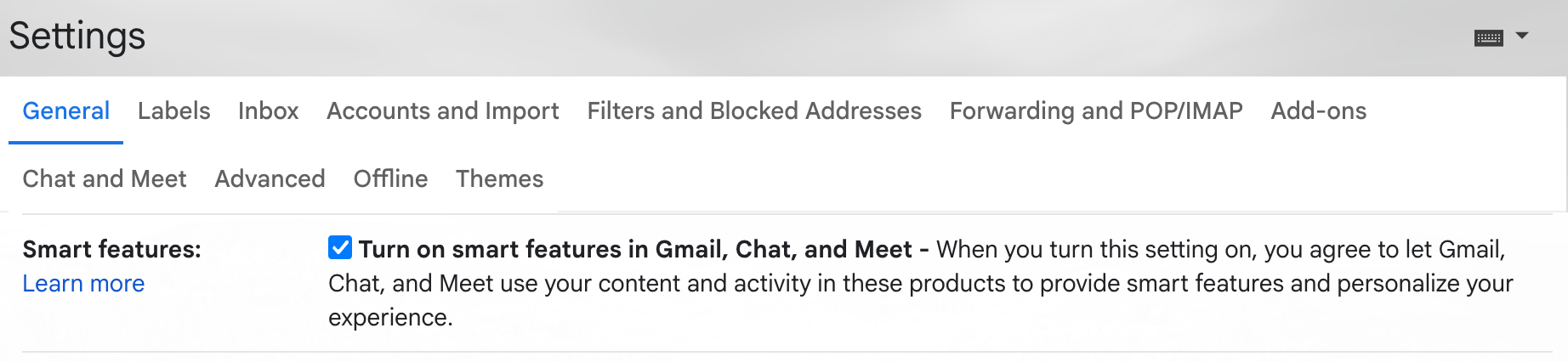
- Under the General tab, scroll to Smart features and personalization.
- Uncheck “Turn on smart features in Gmail, Chat, and Meet.”
Doing this switches off Smart Reply, Smart Compose, and automatic email sorting.
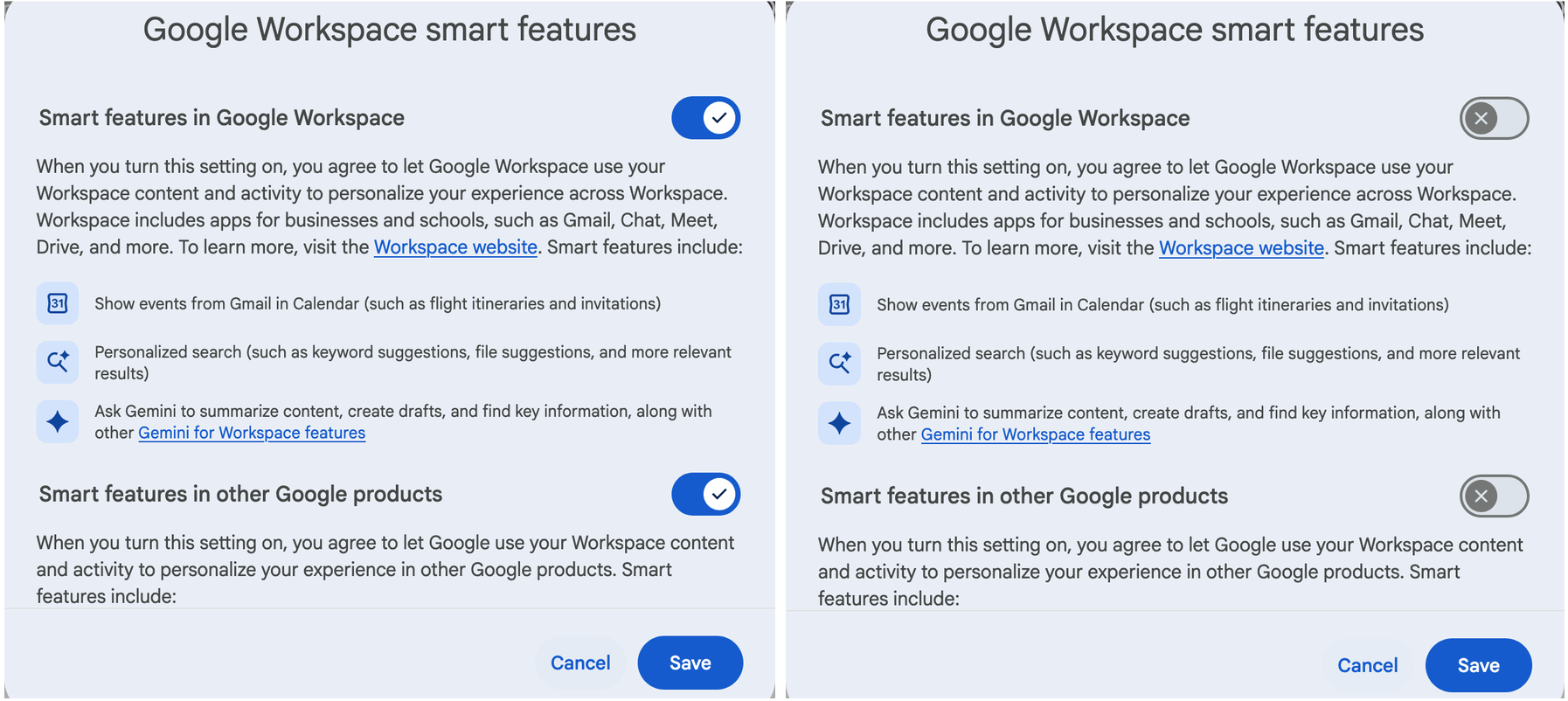
Move 2: Close the Workspace Loophole
This option is the hidden second switch, and it’s easy to miss because it sits in a different menu from the one above.
- Stay on the same General settings page.
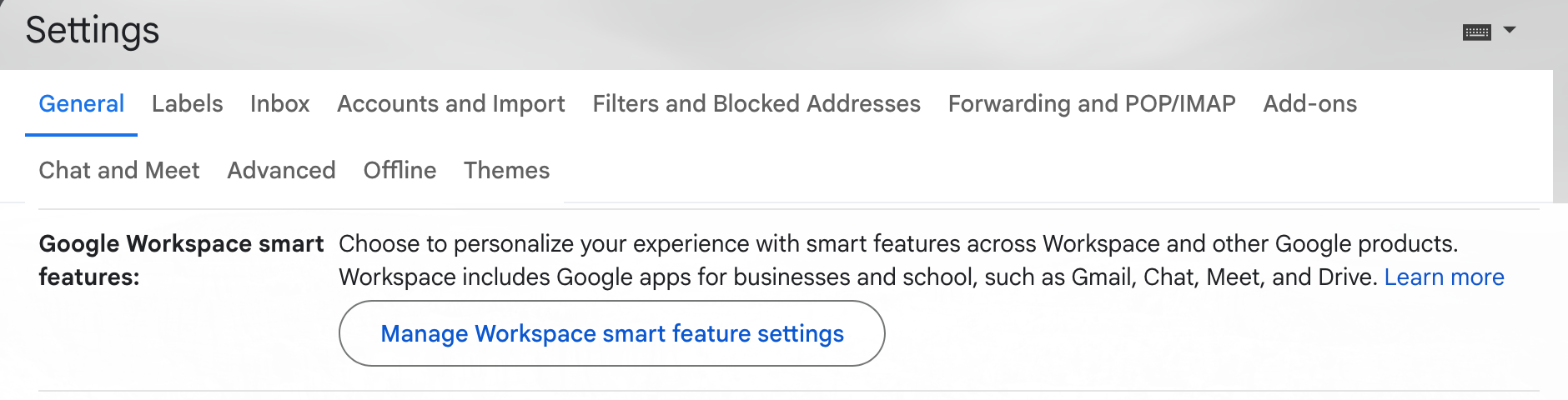
- Find Google Workspace smart features and personalization.
- Click Manage Workspace smart feature settings.
- Uncheck both boxes, then click Save.
Without this step, your email data can still be shared with other Google products like Maps or Assistant, even after you’ve disabled the main switch.
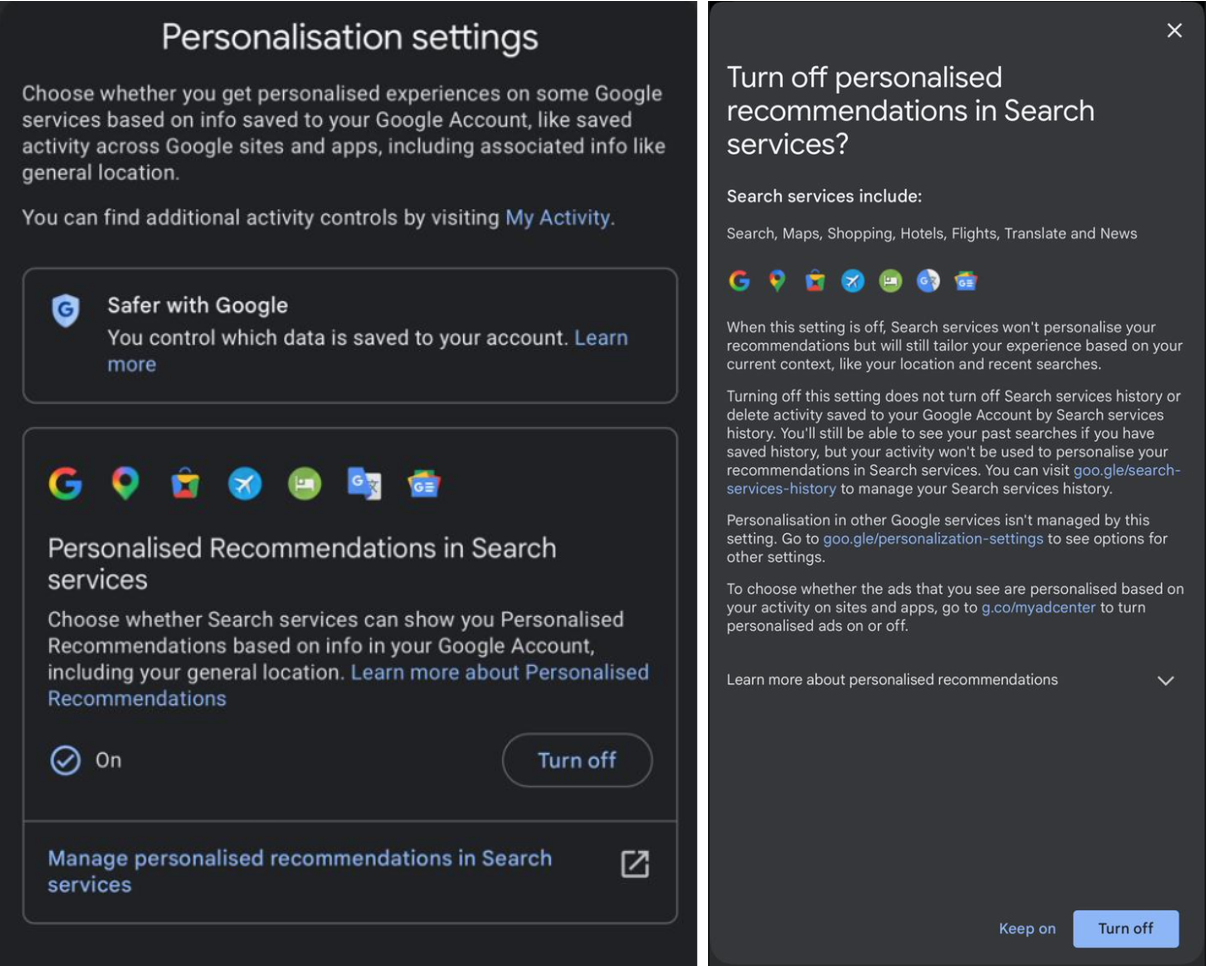
Your phone doesn’t automatically follow the changes you made on the desktop.
- Open the Gmail app.
- Tap the menu icon (☰), then Settings.
- Select your email account.
- Tap Data privacy (some versions show this as Data and personalization)
- Turn off Personalization Settings.
Skip this step and your phone keeps scanning even after your laptop stops.
Move 4: Delete What’s Already Been Collected
Turning off future scanning doesn’t erase what Gemini has already stored.
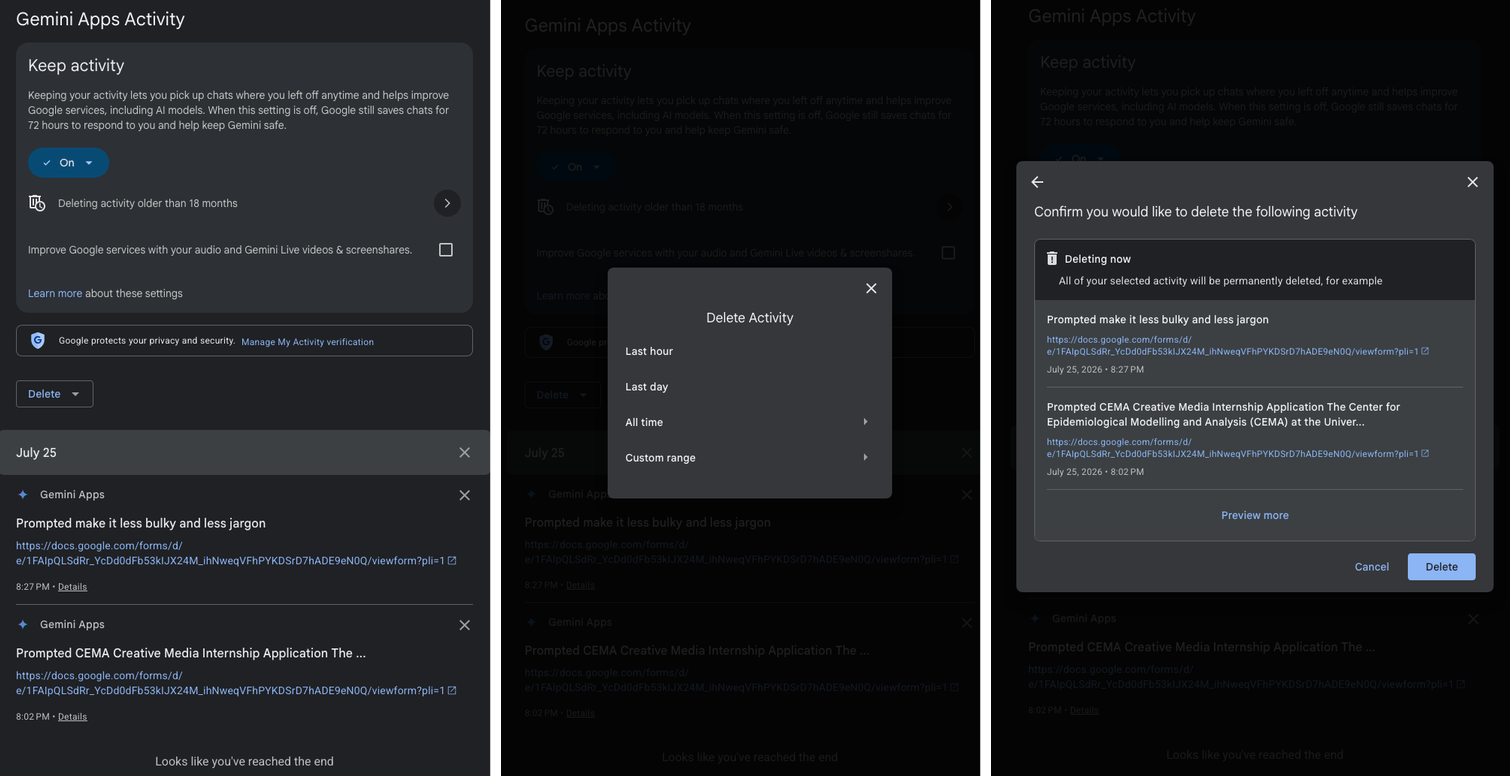
- Go to myactivity.google.com/product/gemini.
- Toggle Gemini Apps Activity to off.
- Select Delete, then All Time, to wipe your existing history.
This is the step most people forget, and it’s the one that actually clears out past data instead of just blocking new data.
Move 5: Move Your Most Sensitive Mail Off Google
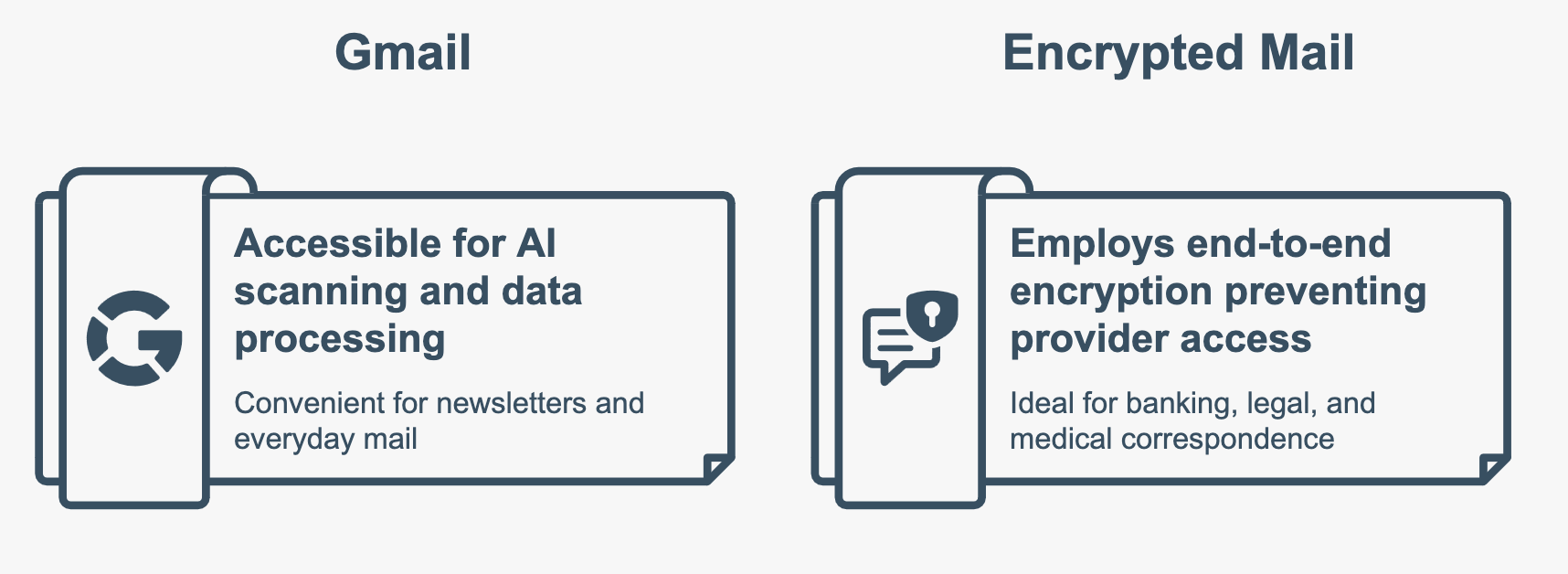
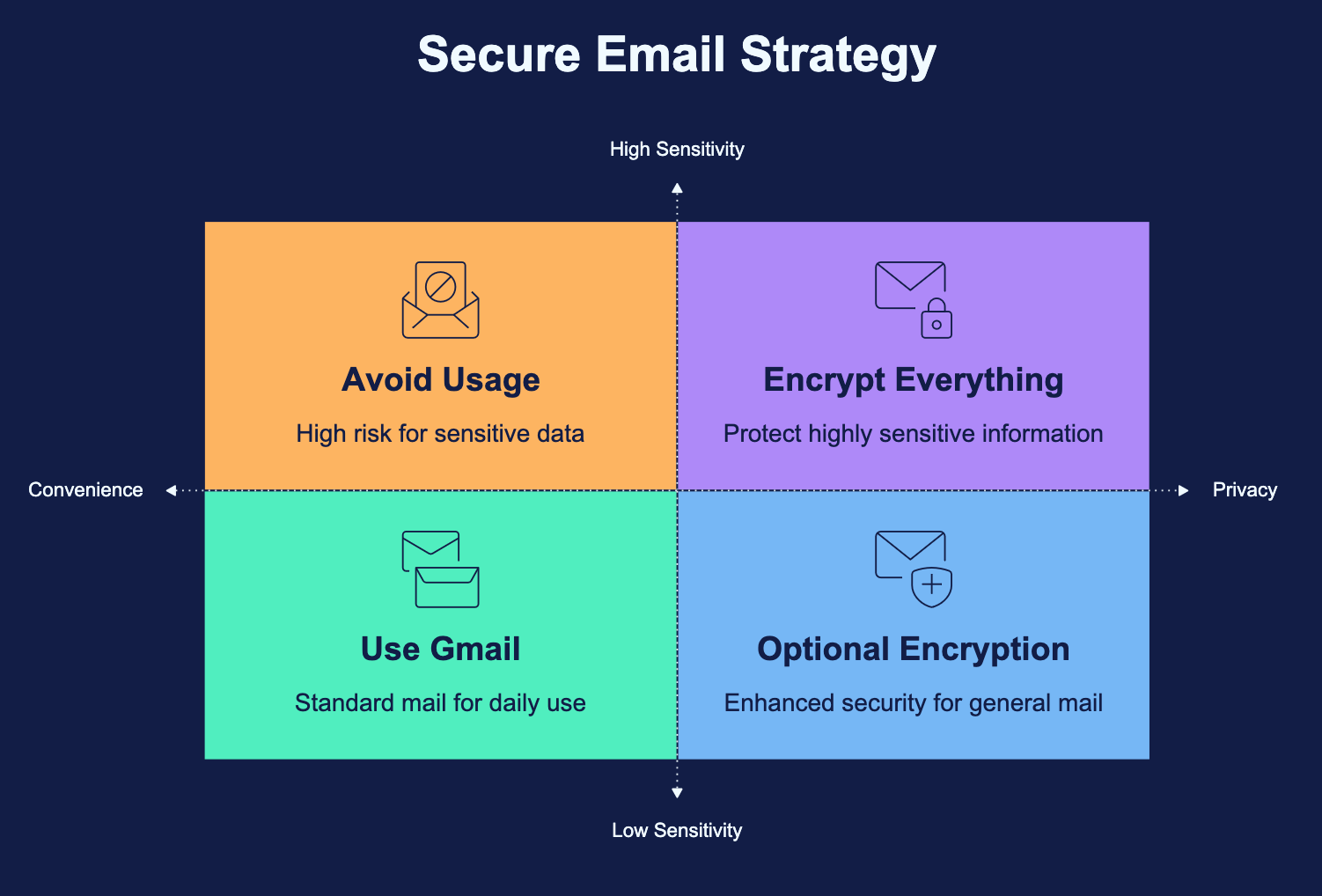
For anything you really don’t want an AI anywhere near, the safest option is to keep it off Gmail entirely.
Services like Proton Mail use end-to-end encryption strong enough that even the provider can’t read your messages. A practical middle ground: keep Gmail for newsletters and everyday mail, but move banking, legal, and medical correspondence to an encrypted inbox.
What You’ll Give Up
Turning all of this off comes with trade-offs. You’ll lose:
- Smart Compose and predictive text
- Automatic sorting into Primary, Social, and Promotions tabs
- Summary cards for flights, packages, and bills
- Google Assistant reminders pulled from your inbox
For most people, that’s a fair trade for knowing an AI isn’t quietly reading their tax returns.