






You know how Android phones keep running out of storage? Even after deleting photos, uninstalling unused apps, clearing WhatsApp, and backing up your camera roll to Google Photos, you still end up seeing the “Storage Almost Full” warning when you try to record a video or download something?
You are not imagining things, and you are not doing anything wrong. Your phone is just not telling you the whole story. Many Android users encounter this frustrating issue, often due to hidden files and system caches that accumulate over time.
The real problem is not what you can see. It is what Android quietly accumulates in storage in the background without ever asking your permission.
The Culprits: Where Hidden Junk Resides
The primary reason for persistent storage issues lies in various types of temporary and residual files that Android systems and specific applications tend to hoard.
These include:
- App Caches: Applications like social media platforms and browsers store large amounts of temporary data to improve performance. While seemingly innocuous, these caches can grow to several gigabytes.
- WhatsApp Media Duplicates: WhatsApp, a widely used messaging app, often stores multiple copies of media files, contributing significantly to storage consumption.
- Gallery Trash: When you delete photos or videos, they often reside in a trash or recently deleted folder for a period before permanent deletion, still occupying space.
- Hidden .thumbnails Folder: Android generates tiny preview images for every photo and video. These .thumbnails files can accumulate and remain even after the original media is deleted.
- Ghost Files from Uninstalled Apps: When an application is uninstalled, it often leaves behind residual data, configuration files, and downloaded content in the Android/data and Android/obb folders.
Step-by-Step Guide to Reclaiming Storage
The good news is that none of it is difficult to clear once you know where to look. Here’s a comprehensive guide to tackling these hidden storage hogs, categorized by the type of junk file.
Clear App Caches
Every app on your phone stores temporary data locally so it does not have to reload everything from scratch each time you open it. That is what a cache is: a collection of saved images, scripts, thumbnails, and session data designed to make the app feel faster.
In theory, caches are supposed to stay small and manageable, but in practice, apps like TikTok, Instagram, Chrome, and YouTube are notorious for letting their caches grow completely unchecked.
TikTok alone can quietly accumulate over 1GB of cached data within weeks of regular use, and most users never think to clear it because the app gives no indication that anything is wrong.
On a phone where you have several active social media and streaming apps, the combined cache total can easily sit between 5 and 10 GB.
Clearing it has no downside: the app simply has to reload some assets the next time you open it, which happens quickly. You will not lose any account data, settings, or content.
How to Clear App Caches:
- Go to Settings and open Apps. Depending on your Android version and device brand, this may also appear as ‘Apps & Notifications’ or ‘Application Manager.’
- Select the specific app you want to clear, such as TikTok, Instagram, Chrome, or YouTube.
- Tap Storage, then select Clear Cache.
The most important thing to watch here is to tap ‘Clear Cache,’ not ‘Clear Storage’ or ‘Clear Data.’
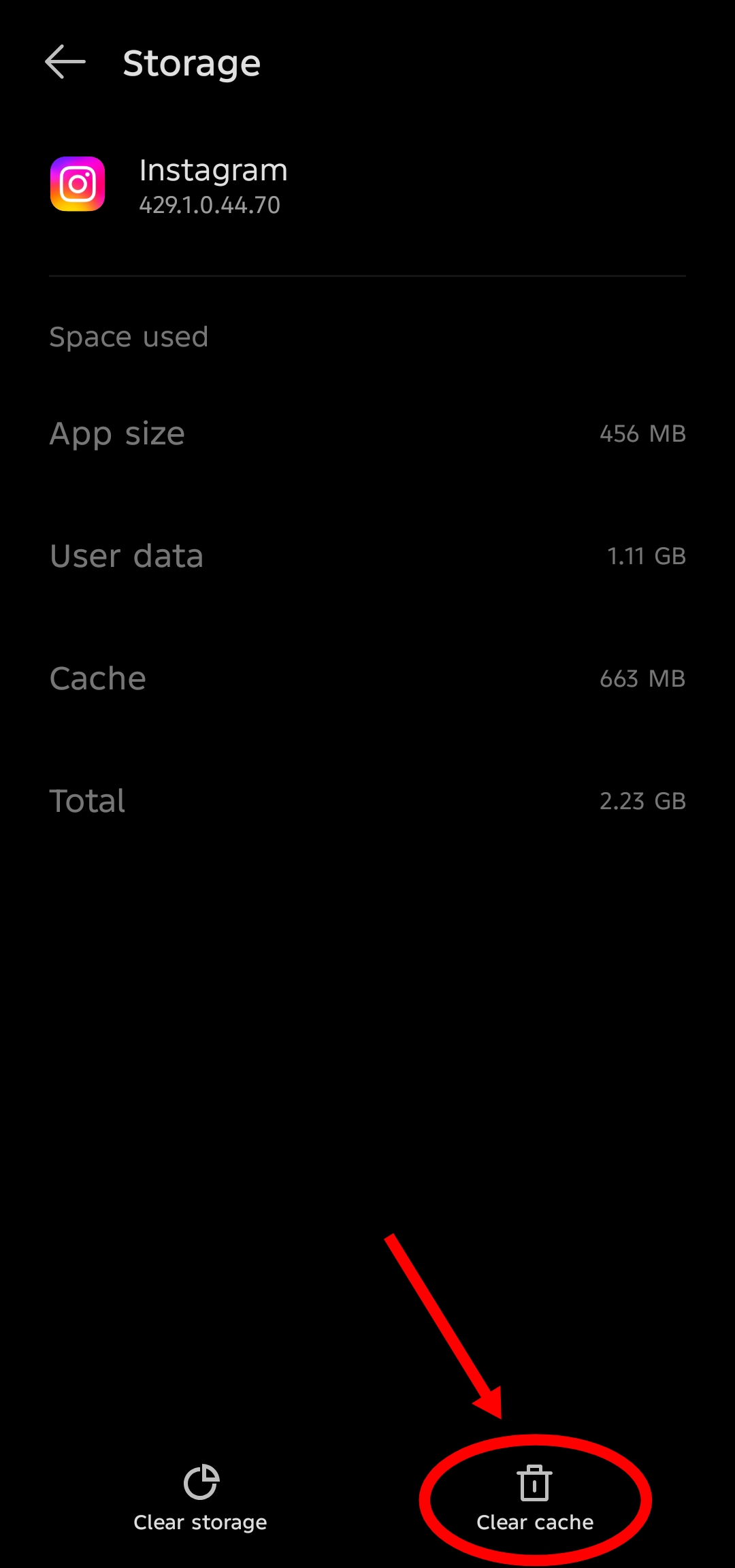
Clear Cache removes only temporary files. Clear Storage or Clear Data resets the app to its factory state, which will log you out and delete any locally stored preferences or data. They sit right next to each other on the menu, and it is an easy mistake to make.
Managing WhatsApp Media
WhatsApp is one of the most storage-hungry apps on any Android phone, and it is almost never obvious how much space it is consuming until you go looking.
Every image, video, voice note, document, sticker, and audio file sent or received through the app is saved locally on your device by default.
That means every meme forwarded in a family group chat, every video clip from a colleague, and every voice note you listened to once and forgot about is sitting on your phone taking up space.
On an active WhatsApp account, especially one connected to multiple busy groups, this folder can easily reach 5 to 10GB or more.
The important thing to understand here is that clearing the WhatsApp media folder does not affect your chats. Your conversation history, contacts, and message threads all live separately and will remain completely intact.
You are only removing the media files that were downloaded to your device, which you can always re-download from within the chat if you ever need them again.
How to Clear Your WhatsApp Media Folder:
- Open your file manager. Depending on your device, this may be called My Files, Files, or Files by Google.
- Navigate to Internal Storage>Android>Media>com.whatsapp>WhatsApp>Media.
- Inside you will find subfolders organized by type: WhatsApp Images, WhatsApp Video, WhatsApp Audio, WhatsApp Documents, and WhatsApp Voice Notes.
- Sort the contents of each folder by file size to identify the biggest offenders first, then go through and delete what you no longer need.
If you prefer a slightly more visual approach, you can also do this from within WhatsApp itself by going to Settings, Storage and Data, and then Manage Storage.
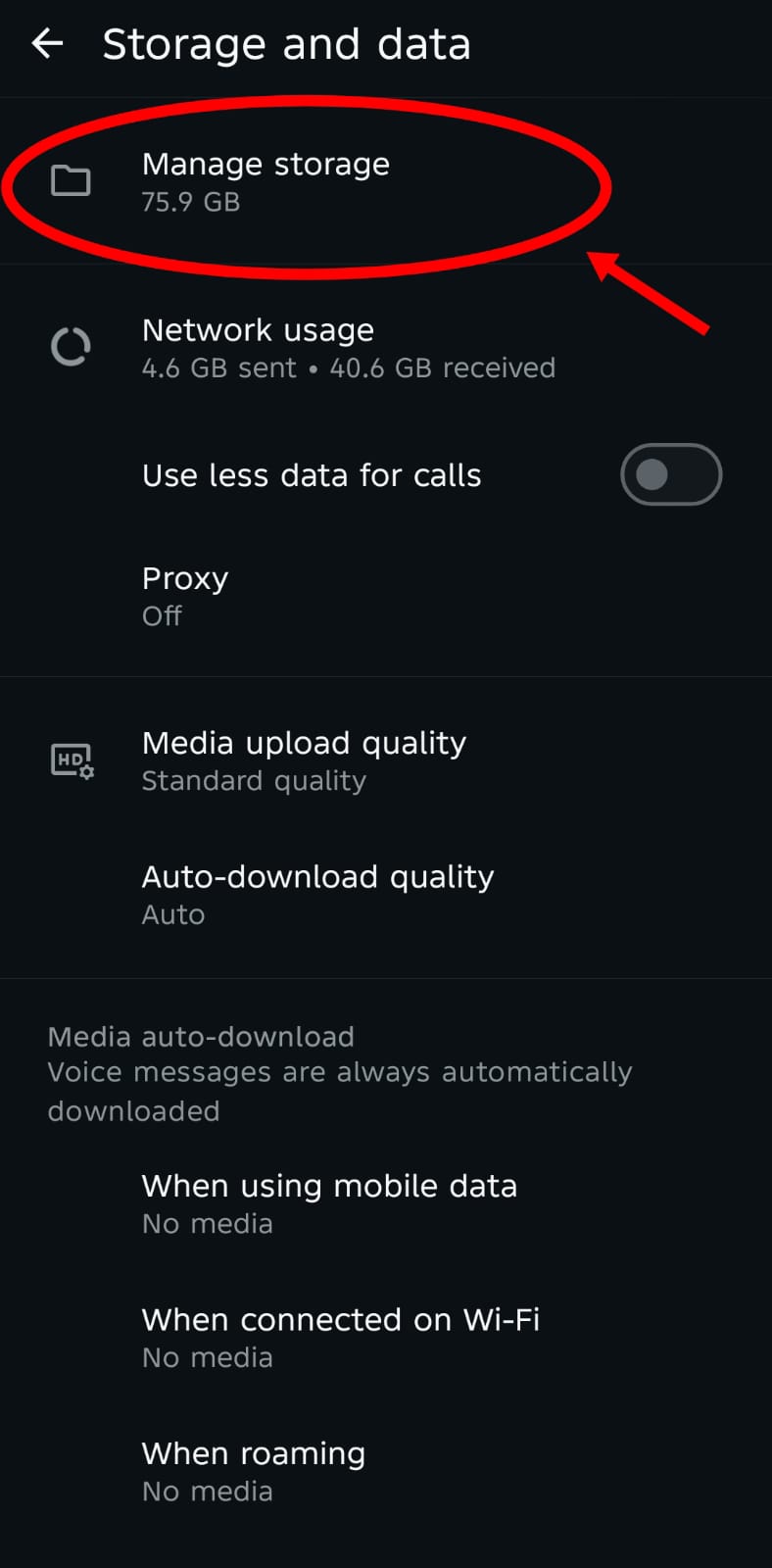
This view shows you which chats are taking up the most space and lets you delete media by conversation, which is useful if one particular group has been sharing videos for months.
Empty the Gallery Bin
Most people do not realize that deleting a photo on their phone does not actually delete it straight away. Gallery apps across nearly every Android skin include a Trash or Recently Deleted folder that functions as a safety net, holding deleted photos and videos for a set period before permanently removing them.
It is a well-intentioned feature, since it gives you a window to recover something you deleted by accident. The downside is that all of that media is still sitting on your device taking up storage space, just tucked away somewhere you are unlikely to check regularly.
If you are someone who periodically cleans their camera roll, which is a healthy habit, those deletions may not be freeing up nearly as much space as you think.
A session where you delete 500MB worth of photos might free up nothing at all if the bin has not been emptied in weeks.
How to Clear Your Gallery Bin:
- Open your Gallery app.
- Look for Trash, Recycle Bin, or Recently Deleted. This is usually found under the Albums tab or through the app’s side menu.
- Review what is inside and select the option to permanently empty it.
How long items are held varies by brand. Samsung and Xiaomi Gallery both keep deleted media for 30 days before automatically removing it.
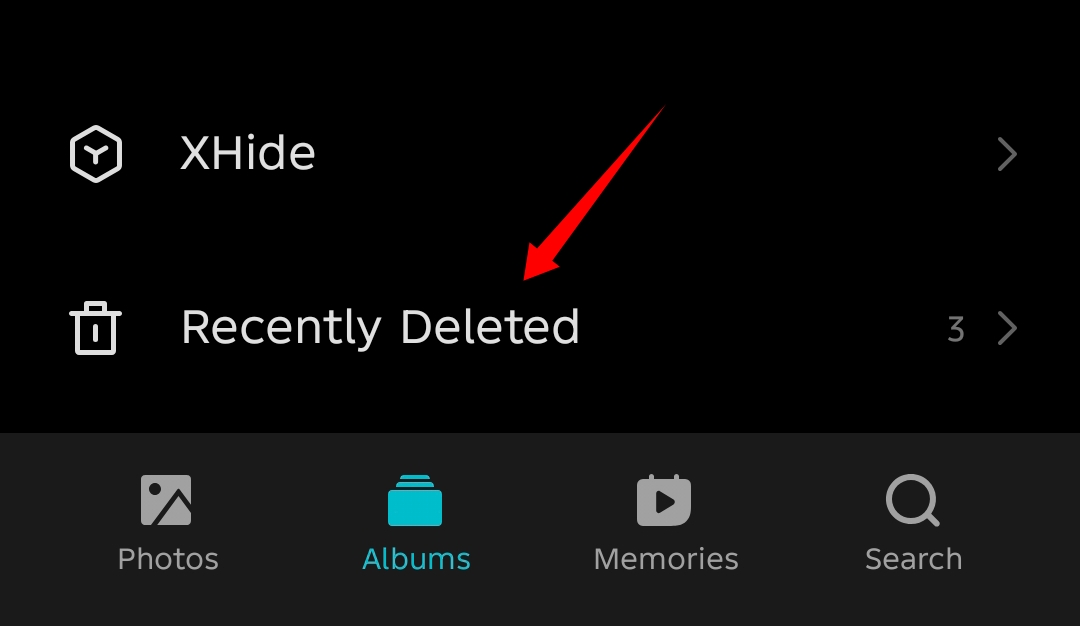
Google Photos holds items for 60 days if they are backed up to your Google account, or 30 days if they are not. Whatever the window, you do not need to wait for it to expire; you can empty the bin manually at any time.
Delete the Hidden .thumbnails Folder
This is one of the least-known storage drains on Android and one of the most effective fixes once you discover it.
Whenever your phone’s gallery loads images and videos, Android generates small compressed preview images for each file so it can display them quickly as you scroll.
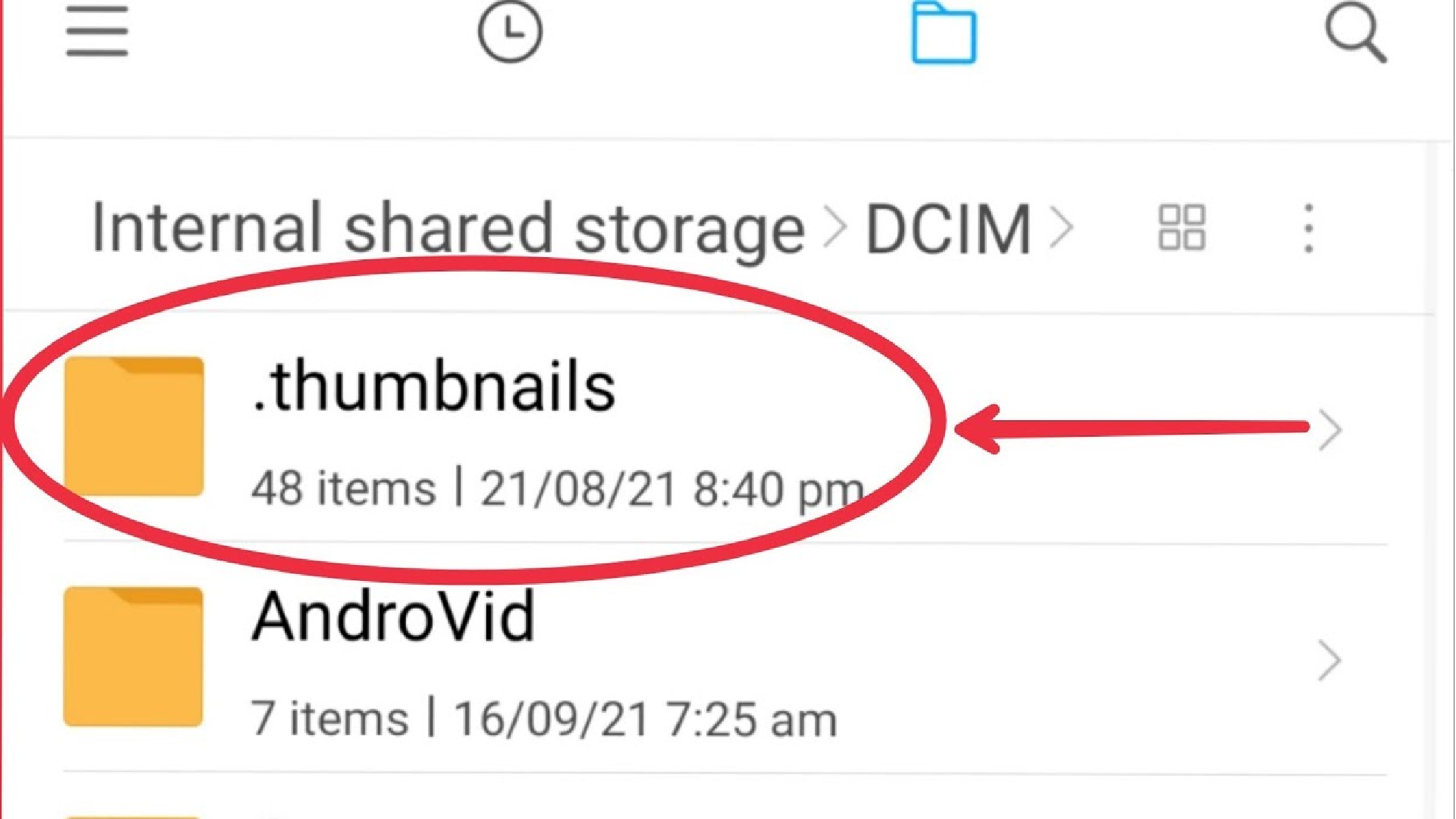
These previews are stored in a hidden folder called .thumbnails, tucked inside the DCIM directory. The folder is hidden by default, which is why most people never encounter it, and it never deletes itself automatically.
The specific problem is what happens when you delete photos and videos from your device. The original files are removed, but the thumbnail previews for those files remain in the .thumbnails folder indefinitely.
Over months and years of use, especially on a phone you use frequently for photography, this folder can accumulate gigabytes worth of preview images that correspond to content that no longer exists anywhere on your device.
Deleting the folder is completely safe because Android simply regenerates thumbnails for the files that are still present the next time you open your gallery.
How to Clear Your .thumbnails Folder:
- Open your file manager and navigate into its settings or menu to find the Show Hidden Files toggle. Enable it.
- Navigate to DCIM and open the .thumbnails folder inside.
- Select all files within the folder and delete them.
Your gallery may take a moment to reload the next time you open it while it regenerates previews for your current photos. That is completely normal.
Remove Ghost Folders from Uninstalled Apps
When you uninstall an app, Android removes the application itself but frequently leaves behind the data and cache folders the app created during its lifetime.
These folders live inside the Android/data and Android/obb directories and can contain anything from downloaded game levels and offline content to configuration files, login tokens, and accumulated cache from months of use.
On a phone where you have installed and removed many apps over the years, these ghost folders can quietly account for several gigabytes worth of storage that serves no purpose whatsoever.
From Android 11 onwards, Google introduced Scoped Storage restrictions that limit how third-party file managers can access these directories. This is why users who try to navigate there find that the folders appear empty or read-only.
The solution is to use your device’s own built-in file manager, which typically has system-level access that third-party apps do not.
Samsung: Use the pre-installed “My Files” app. Navigate to Internal Storage > Android > data. Look for folders named after apps you have uninstalled and delete them.
Xiaomi/Redmi/POCO: Use the pre-installed “File Manager” app. Follow the same path as for Samsung devices.
Vivo/OnePlus: The built-in file manager might work. If not, connect your phone to a PC via a USB cable, open the phone’s storage in File Explorer, and browse to Android > data from your computer. Only delete folders corresponding to apps you have already uninstalled.
Tecno/Infinix: Both brands run their own Android skin, HiOS on Tecno and XOS on Infinix, and both include a built-in file manager that should allow access to the Android/data directory. Follow the same path as above. Alternatively, Phone Master, which comes pre-installed on both brands, has a Residual Files scanner that identifies and removes these leftover folders automatically without requiring you to navigate there manually.
Use Your Phone’s Built-In Cleaner
Beyond the manual steps above, most Android skins ship with a system optimization tool that has access to parts of the file system that third-party apps and even you as a user cannot directly reach.
These tools can clear system logs, temporary files generated by the Android OS itself, and other low-level junk that accumulates quietly in the background.
They are safe to run and worth doing as a regular habit, perhaps once a month, rather than only when you notice storage is running low.
How to Use the Phone’s Built-In Cleaner:
Samsung: Go to Settings → Battery and device care → Storage, then tap the three-dot menu and select Optimize now.
Xiaomi/Redmi/POCO: Open the “Security” app and tap “Cleaner.”
Vivo/iQOO: Open “iManager” and select “Space Cleanup.”
OnePlus: Navigate to Settings → About device → Storage and then select “Cleanup.”
Tecno/Infinix: Both brands come with Phone Master pre-installed, which handles system cleaning without requiring you to dig through folders manually.
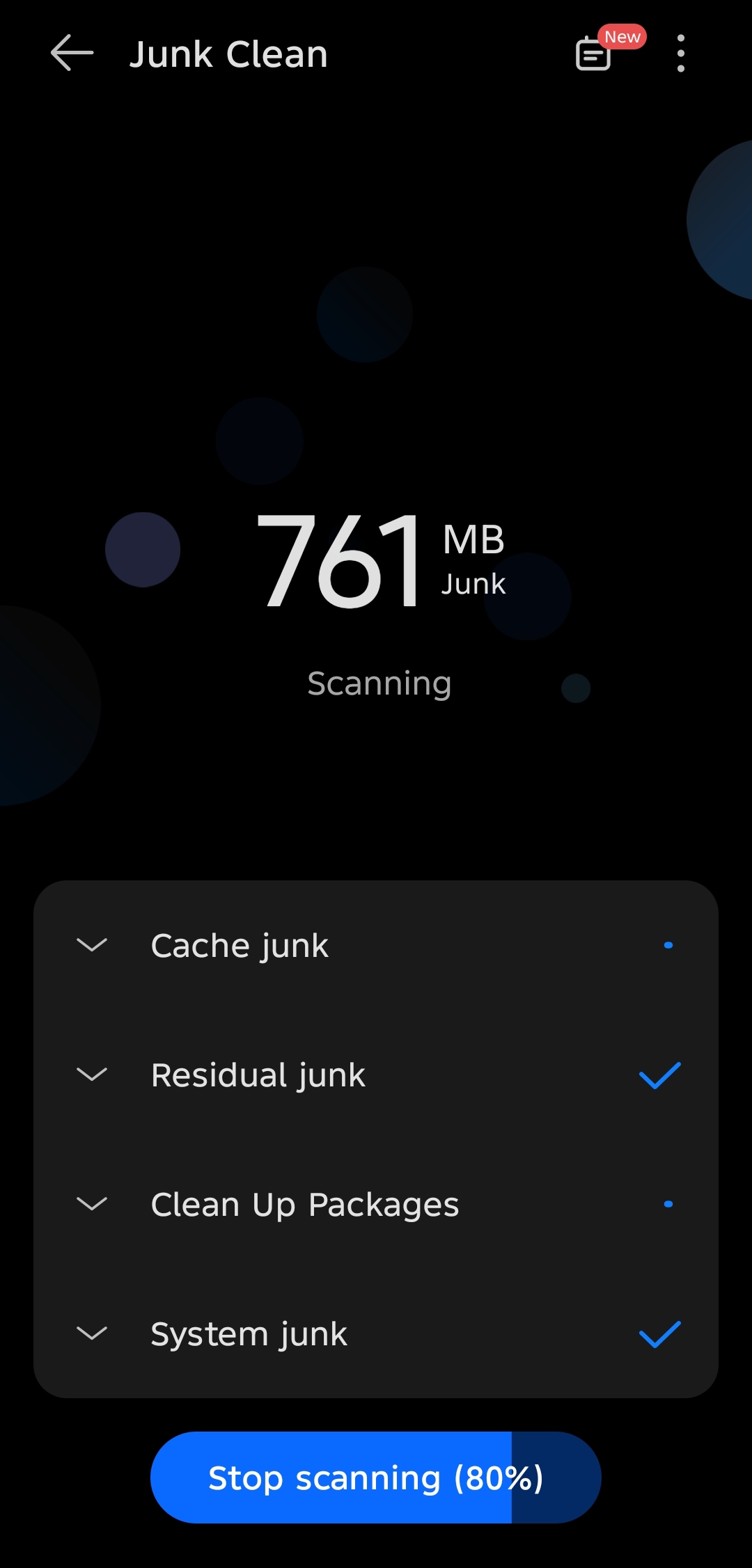
For general junk: Phone Master → Junk Cleaner → Scan → Clear.
For app-specific clutter: Phone Master → App Cleaner → Select App (WhatsApp, Telegram, etc.) → Clean.
Samsung Only: The Secret Code That Clears System Logs
This one is specific to Samsung devices and is worth knowing about if you own one. Samsung’s Android skin, One UI, maintains a set of system diagnostic files called “dumpstate” and “logcat” that are used for debugging and error reporting.
Under normal circumstances, these files exist to help Samsung engineers diagnose issues if something goes wrong with your device. For the average user, they serve no practical purpose at all, but they accumulate continuously in a hidden system partition and can take up anywhere from 500MB to 2GB of space on a well-used device.
There is a hidden diagnostic menu on Samsung phones that lets you delete these log files directly, and it takes about 10 seconds to do.
How to Clear System Logs on a Samsung Device:
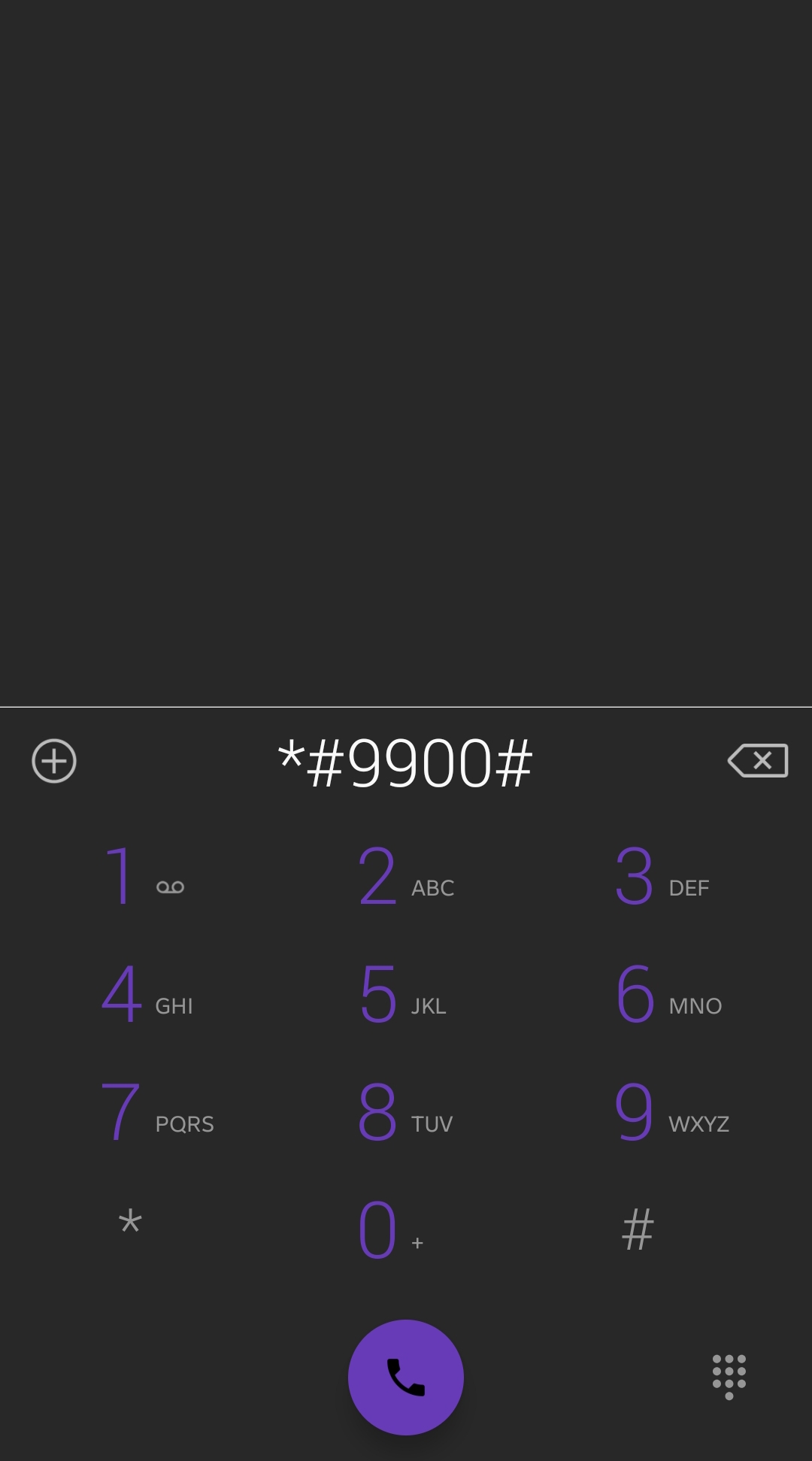
- Open the Dialer app, the standard phone call app, on your Samsung device.
- Type *#9900# using the keypad. A menu called “SysDump” will appear immediately without needing to press call.
- Tap Delete dumpstate/logcat and confirm the action when prompted.
The process clears the log files and nothing else. Your photos, messages, apps, and personal data are completely untouched.
If you are running One UI 7, which ships on the Galaxy S25 series, you may find the code is blocked by a security feature called ‘Auto Blocker’.
To get around this, go to Settings>Security and Privacy>Auto Blocker, and toggle it off temporarily before entering the code. You can turn it back on immediately after.
Run Files by Google as a Final Sweep
Once you have worked through all of the steps above, Files by Google is worth running as a final pass to catch anything that was missed. It is a free app made by Google, available on the Play Store, and it works across all Android devices regardless of brand or skin.
Unlike many cleaner apps that are more bloatware than useful, Files by Google is well-designed and uses Google’s own algorithms to identify storage waste intelligently.
What makes it useful as a final step is that it surfaces categories of junk that manual cleaning tends to miss: duplicate photos saved across multiple apps, blurry shots that your camera took accidentally, old screenshots you took once and never looked at again, and large files sitting in obscure folders that you have completely forgotten about.
It also identifies backed-up media that exists safely in Google Photos and can be safely removed from local storage, which on its own can free up a lot of space depending on how long you have been using Google’s backup.
How to Use Files by Google:
- Install Files by Google from the Google Play Store if you do not already have it, then open the app.
- Tap the Clean tab at the bottom of the screen.
- The app will present several categories of files it has identified as candidates for deletion: junk files, large files, duplicate files, old screenshots, blurry photos, and backed-up media, among others.
- Review each category at your own pace and tap to clear the ones you are comfortable removing.
What You Can Recover
Your numbers will vary depending on how long you have had the device, which apps you use most, and how often if at all you have done any of this before.
The pattern, however, is consistent across Android devices and brands where there is almost always significantly more recoverable space sitting on your phone than the storage screen suggests, and reclaiming it does not require you to sacrifice a single photo, conversation, or app you actually want to keep.